oosVersion 2.1
Install APPs
Guide on how to install Container or Hypervisor applications from the App Store in OOS.
Follow these steps to install applications from the App Store.
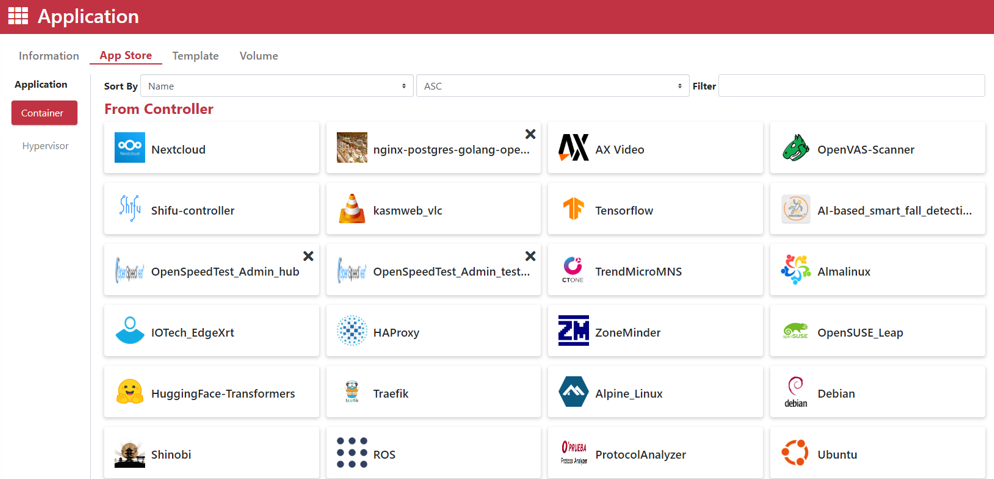
Step 1. Go to the Application > App Store page.
Step 2. Select the Container or Hypervisor application template you wish to install.

Step 3. Choose the application installation mode: Standard Mode for quick setup with low resource usage, or Advanced Mode for customized resource allocation and settings.
- Standard Mode: The system installs the application using default resource limitations and default settings.
- Advanced Mode: Allows custom configuration of the application, including resource limits, port binding, container registry, network endpoint, environment variables, volumes, labels, commands, devices, uploading an App icon, and writing an App description.
Step 4. Click the Apply button to install the application.