oosVersion 2.1
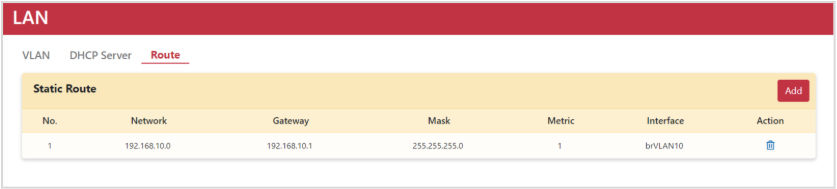
Route
Guide to configuring static routes in OOS to forward data packets to target networks.
Static route configuration allows network administrators to manually add routing information into the routing table, enabling the router to forward data packets accurately to target destinations.
Setting Up a Static Route
- Go to Networking > LAN > Route.
- Click the Add button to display the "Add New Rule" dialog box.
- Enter the Network IP.
- Enter the Gateway IP.
- Enter the Mask IP.
- Enter the Metric.
- Select the target VLAN ID.
- Click the Add button.
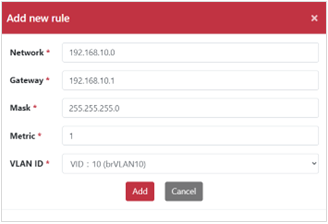
The configured static route rule table is displayed below: