oosVersion 2.1
APN Setting
Guide to applying configured APN profiles and verifying connection status in OOS.
APN Setting
This page is used for applying APN profiles. Settings take effect immediately upon application. You can verify whether the settings have been successfully applied by checking if an IP address has been acquired on the "Mobile Network" page.
The factory default profile is configured for public cellular networks.
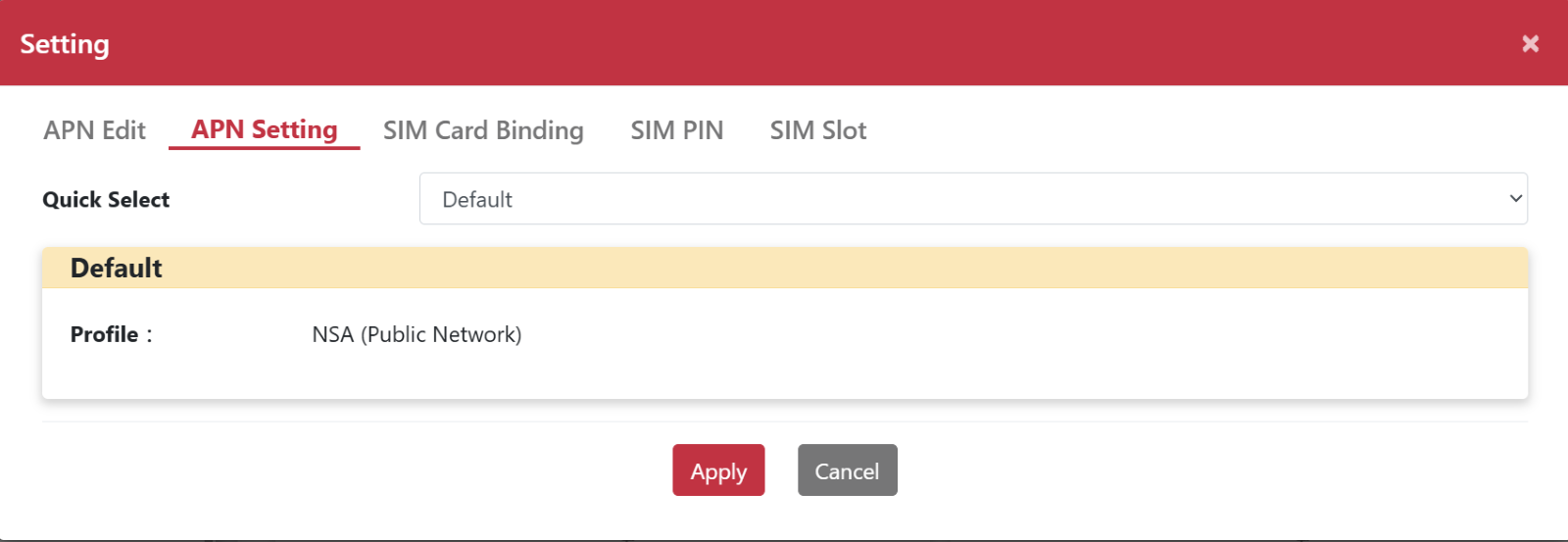
Steps to Apply APN Settings
- Go to Networking > Mobile Network.
- Click the "Setting" button to pop up the Setting dialog box.
- Select the APN Setting tab.
- Choose the desired profile from the Quick Select drop-down menu.
- Click "Apply".
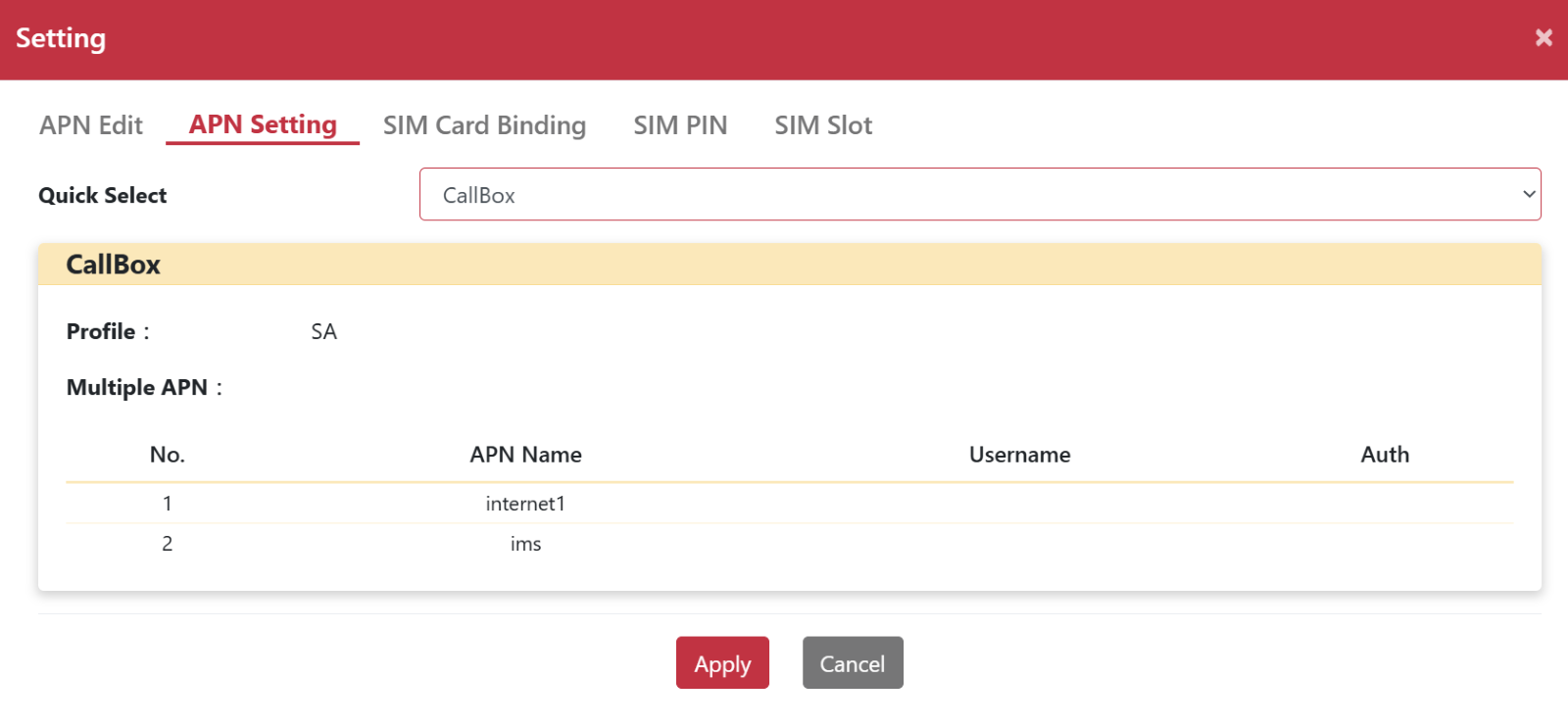
!WARNINGNotification: Switching between NSA and SA modes (NSA to SA or SA to NSA) requires additional network initialization time, typically taking approximately 3 minutes.