Access Control
View connected clients, manage blacklisted devices, and set up custom ACL rules on the Access Control page.
The Access Control page allows monitoring of connected devices, managing blacklists, and setting up granular ACL rules.
1. Online Device
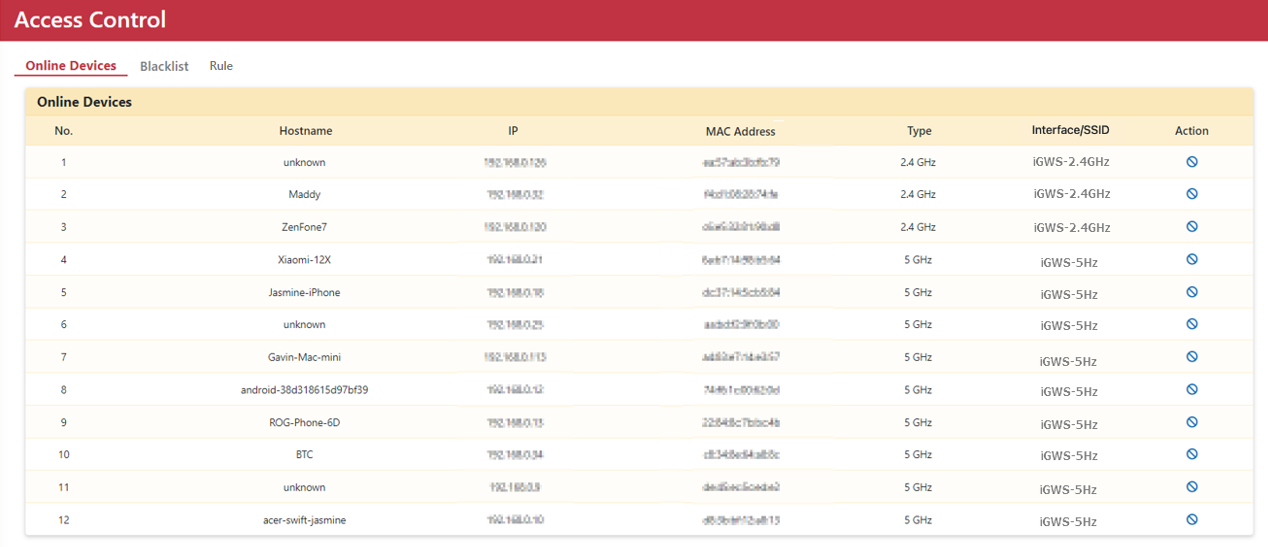
Displays active client devices connected to OOS, including Hostname, IP address, MAC address, and connection interface (Wired or Wi-Fi). The Action column enables adding specific devices to the blacklist.
2. Blacklist
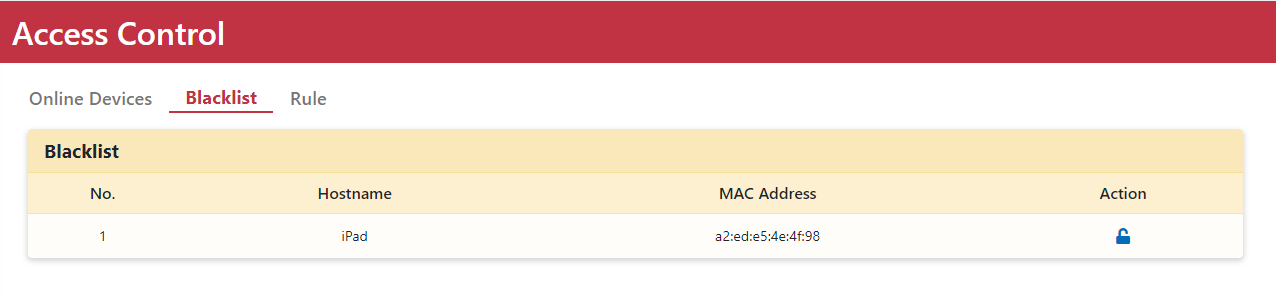
Lists all devices currently blocked on the network. You can unblock devices from the Action column.
3. ACL Rules (Rule)
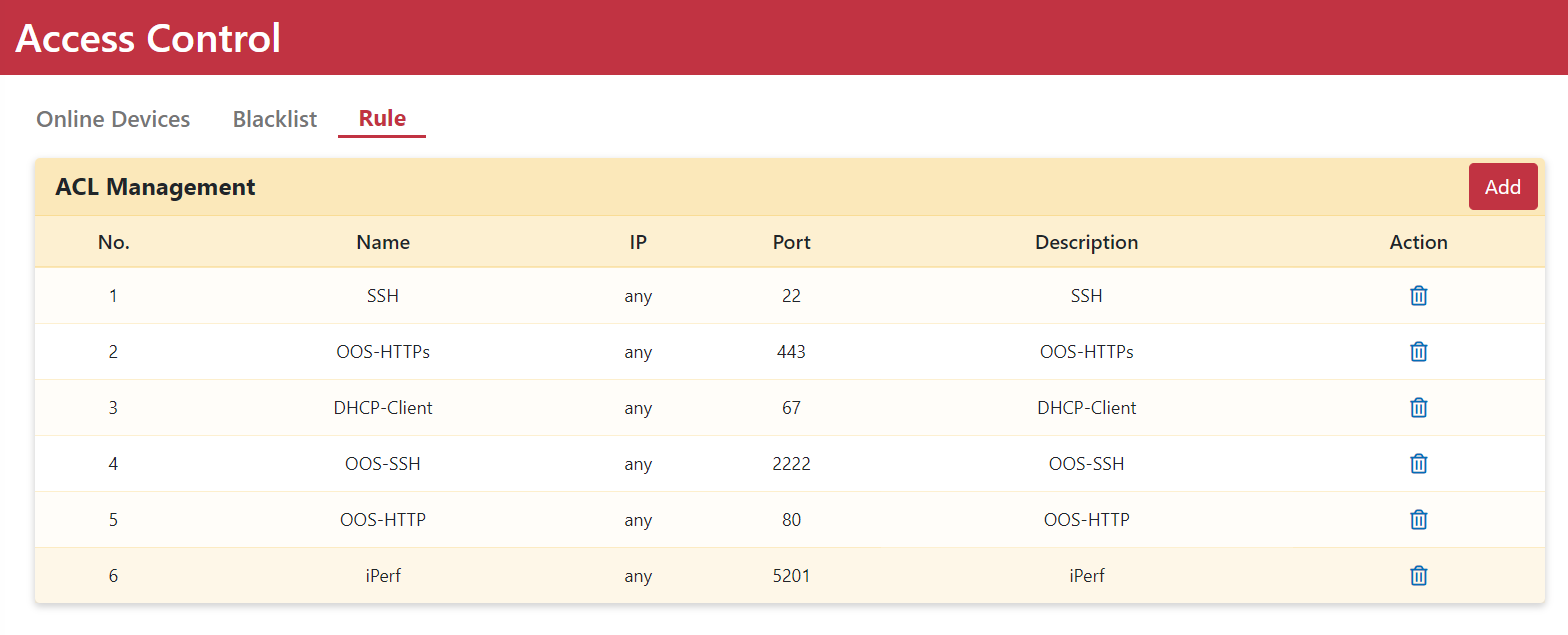
The Rule tab allows specifying IP addresses and ports to permit or restrict access.
Setting Up an ACL Rule
Step 1. Go to the Security > Access Control > Rule page.
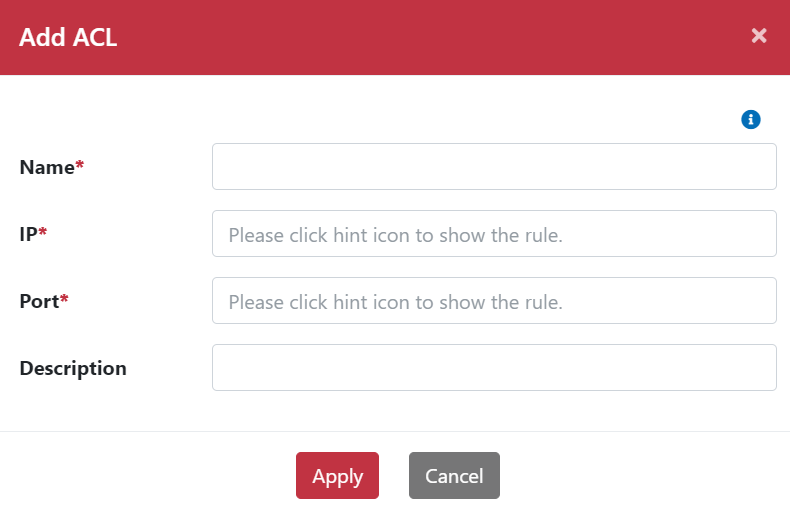
Step 2. Click the Add button to pop up the Add rule dialog.
Step 3. Enter a rule Name.
Step 4. Configure the IP address and Port number.
Step 5. Enter a brief Description.
Step 6. Click the Apply button.
Step 7. The ACL rule will appear in the rule table.
Step 8. Click the Delete icon in the action column to remove a rule.