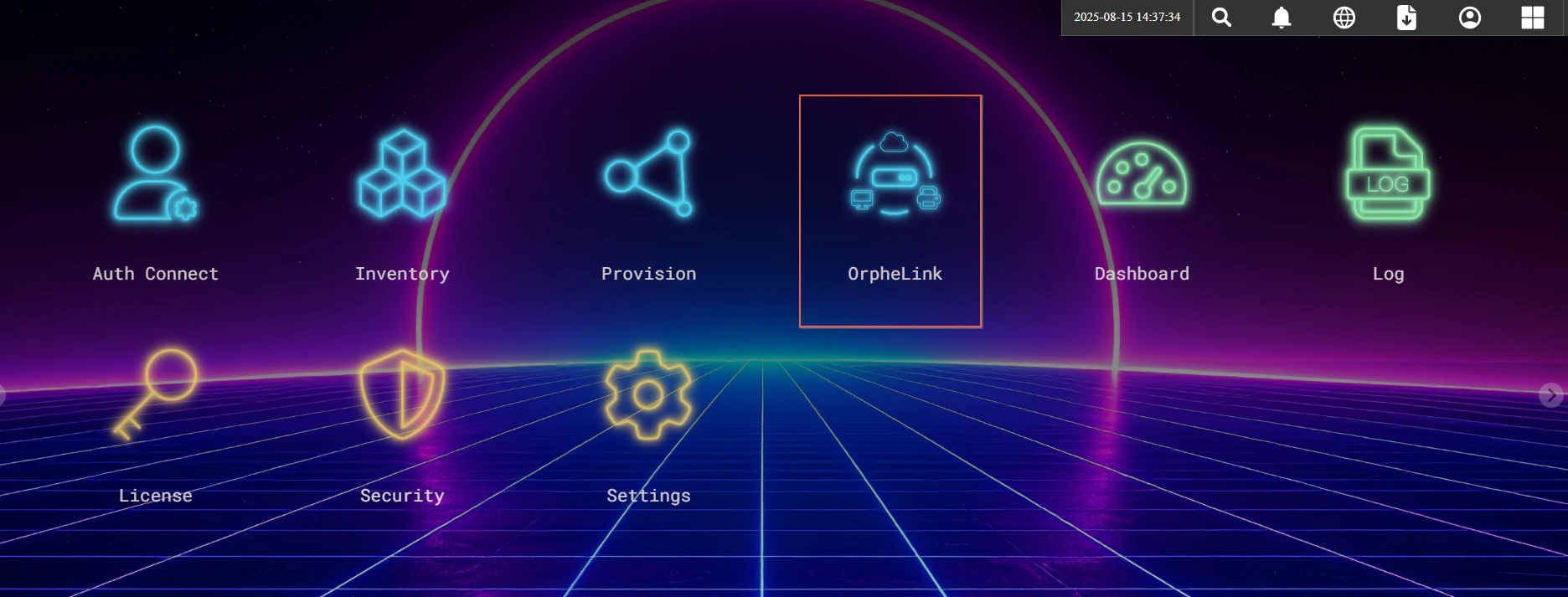
Getting Started
Create an OrpheLink account, complete the first sign-in, and prepare OrpheAgent for provisioning and connection setup.
Create an Account
OrpheLink uses a different verification flow depending on the account type. Follow the steps below for a standard registration; for a Business account, use the flow in the next section instead.
- Open Create a New Account and enter your registration details.
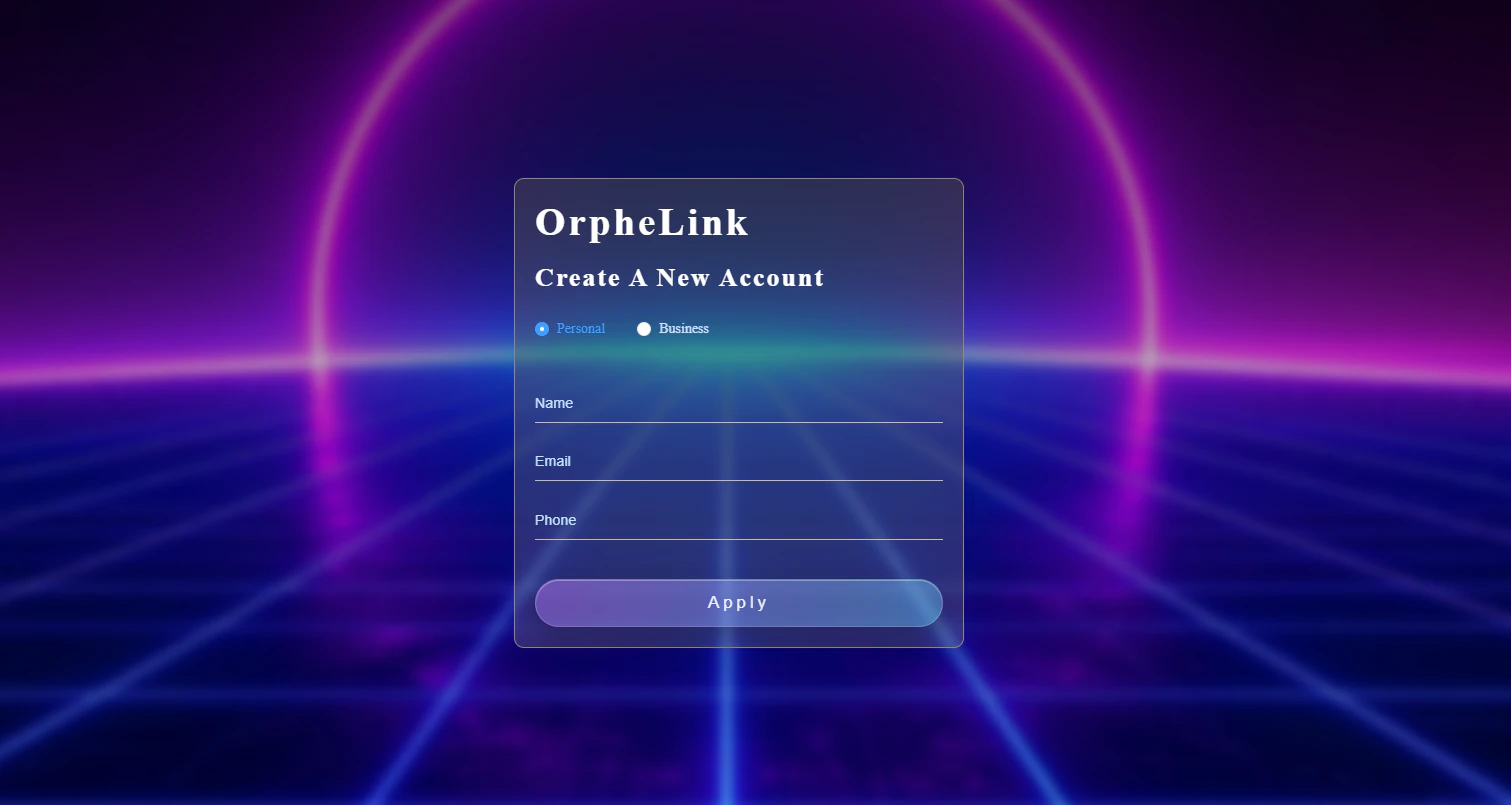
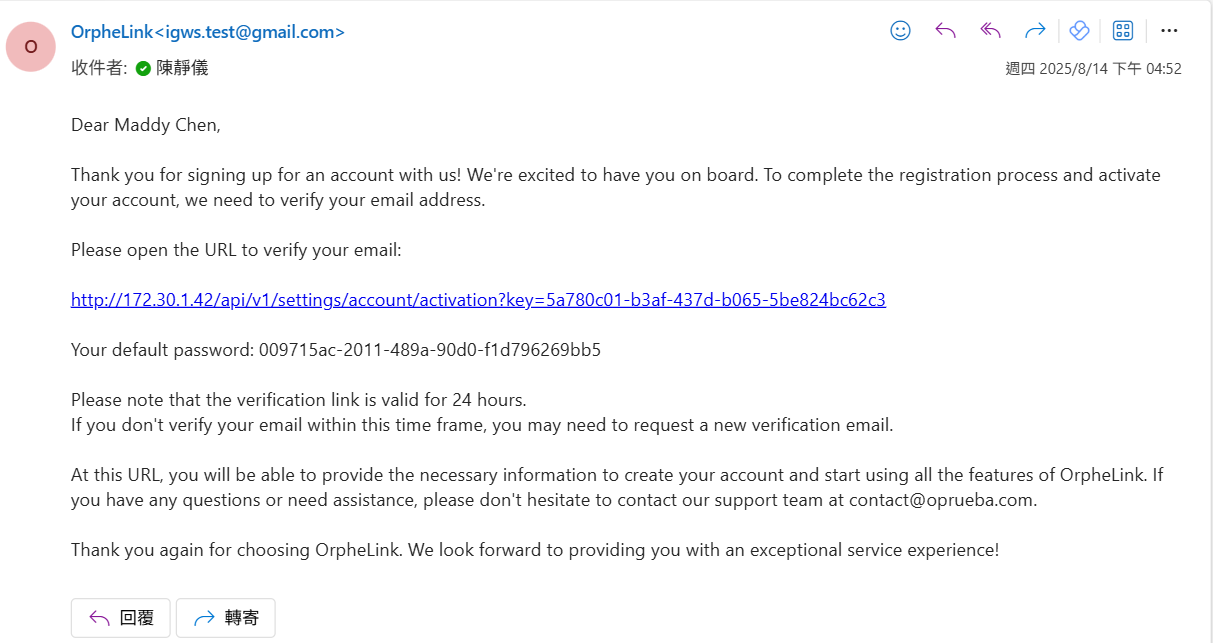
- OrpheLink sends a verification email. Open the link in the message to verify the account. Your email address is your login name, and the initial password is included in the email.
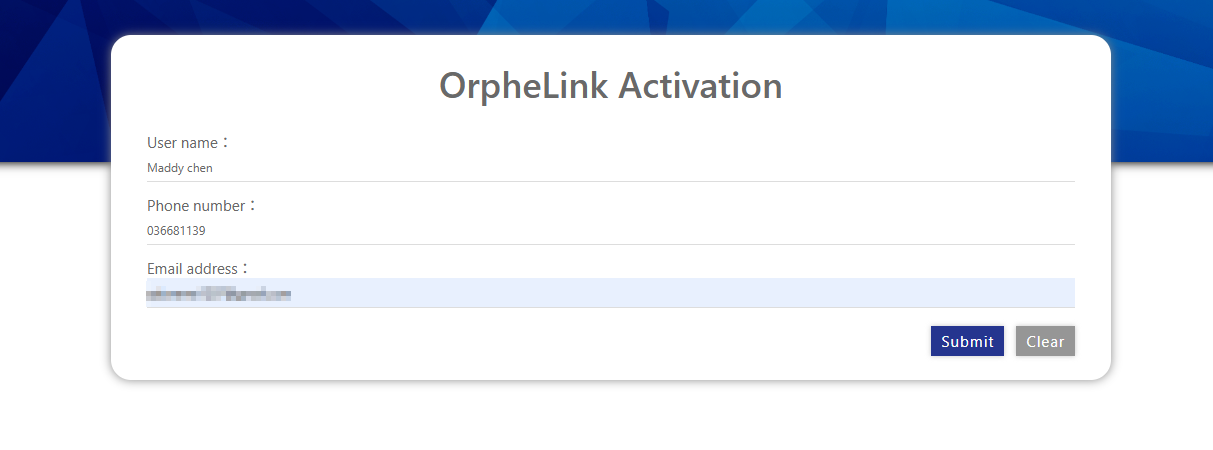
- Follow the email instructions to activate the account and enter the primary administrator's username, phone number, and email address.
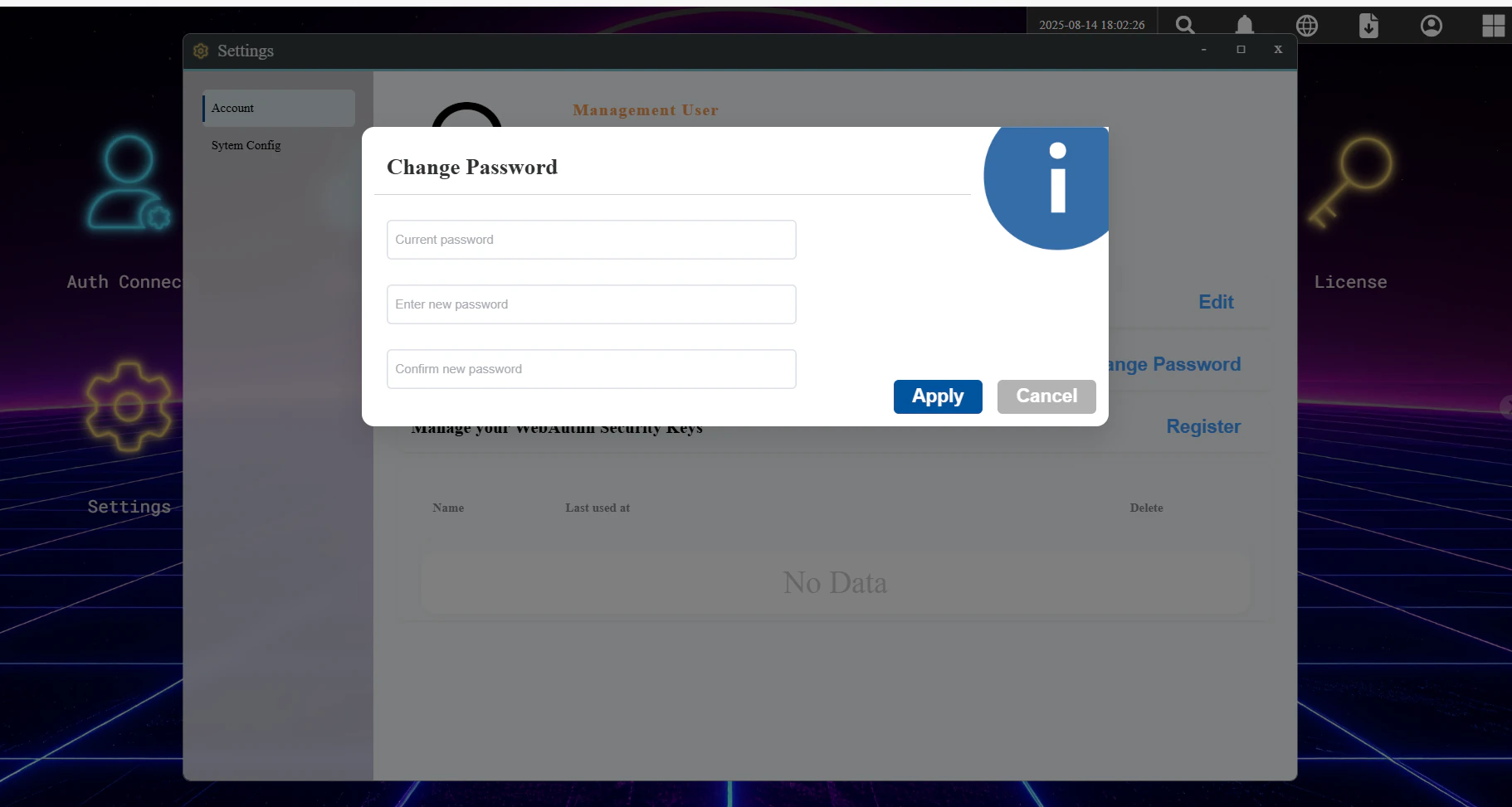
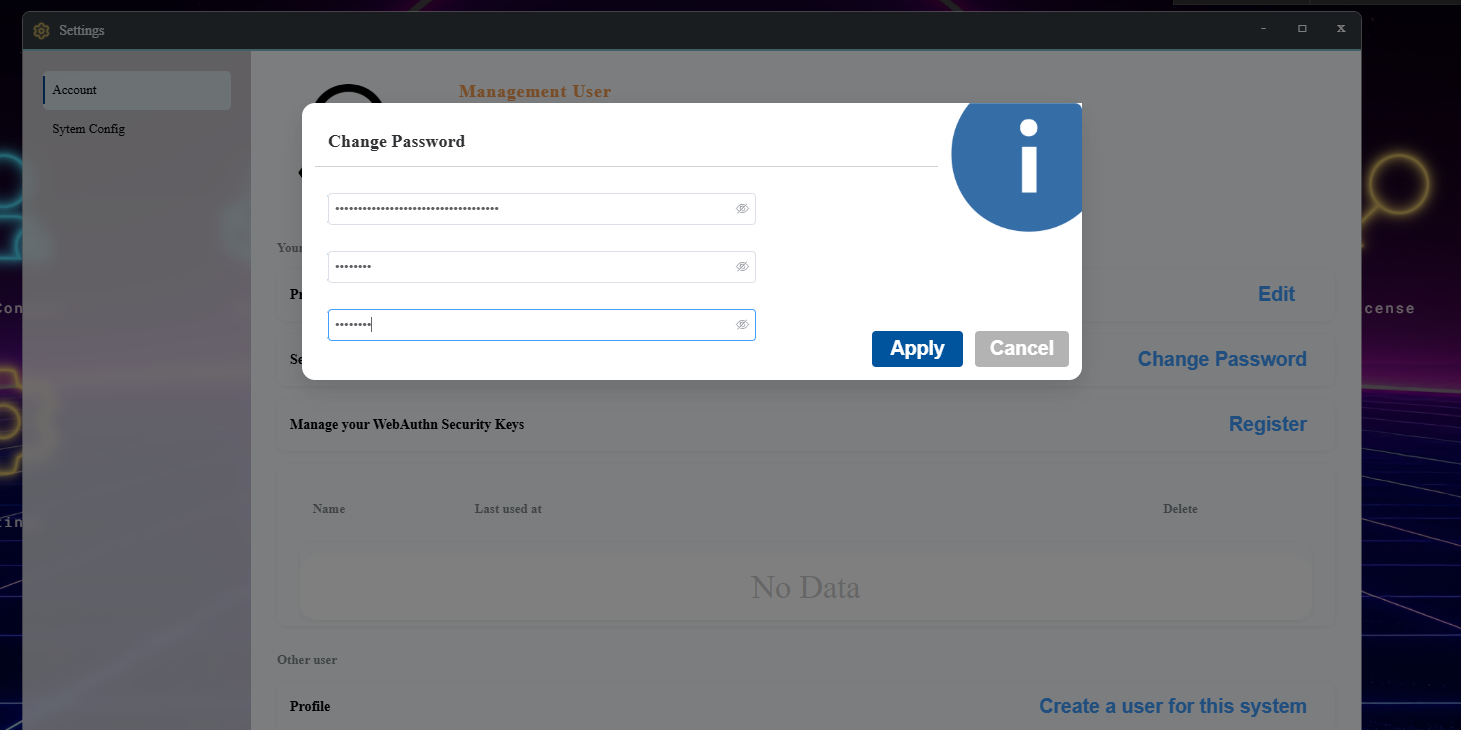
- Change the password when prompted during the first sign-in.
Business Account
Open Create a New Account and select Business during registration.
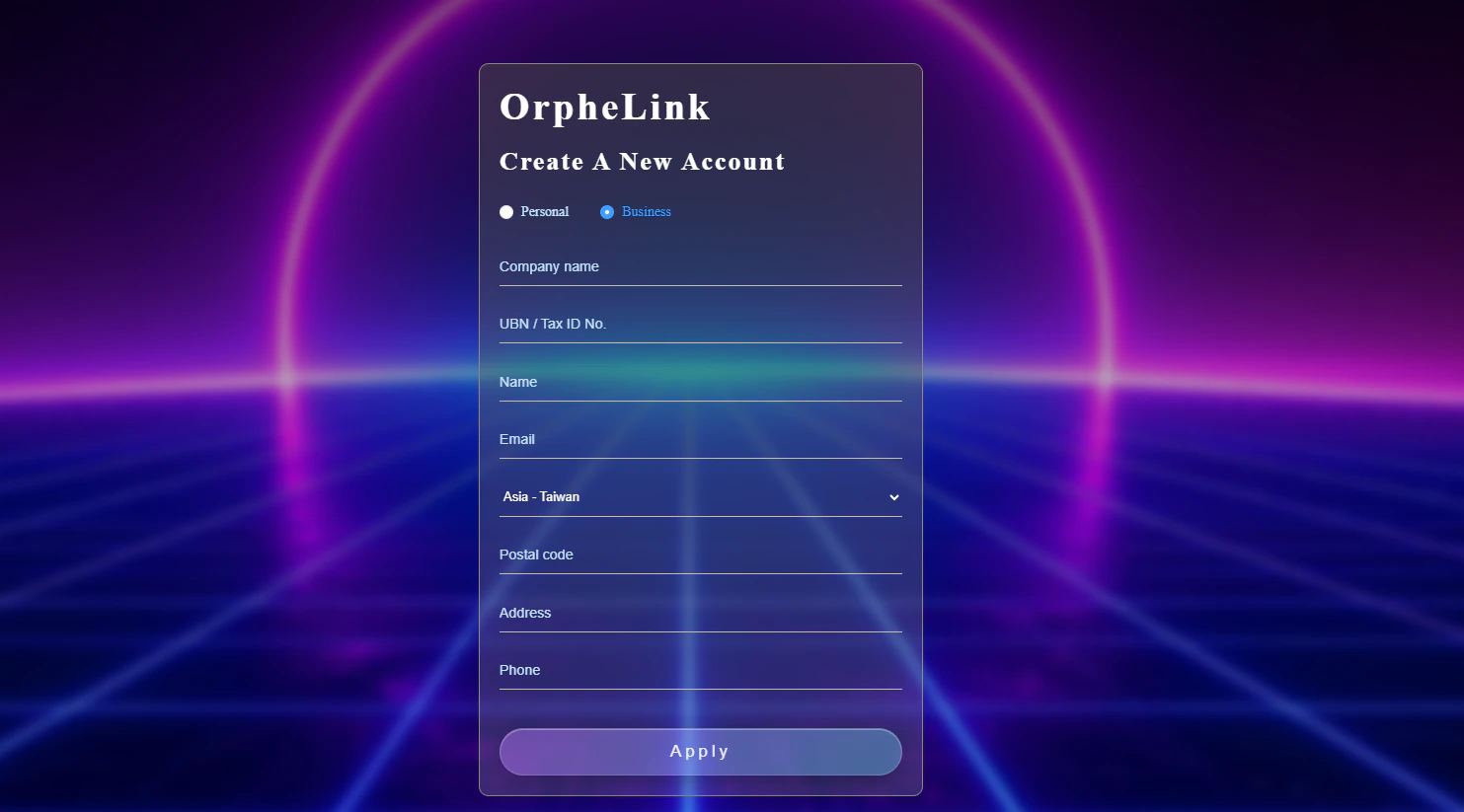
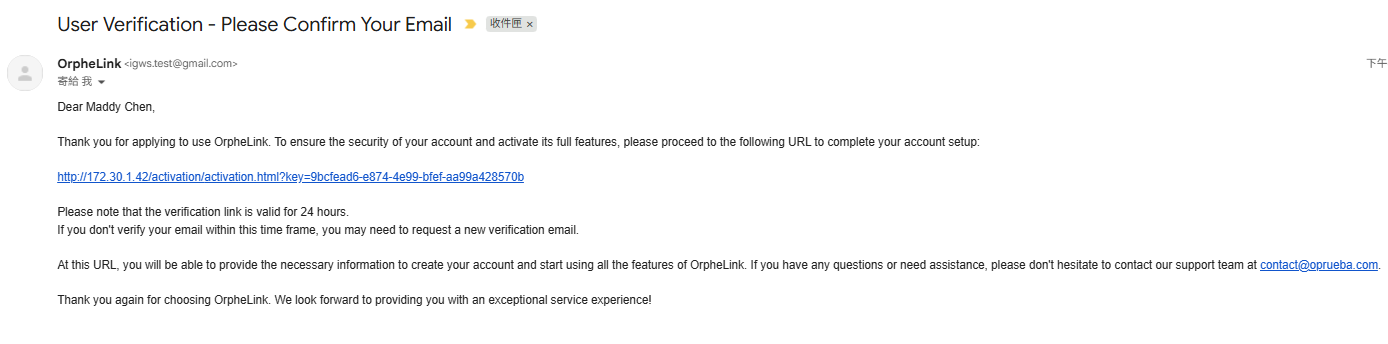
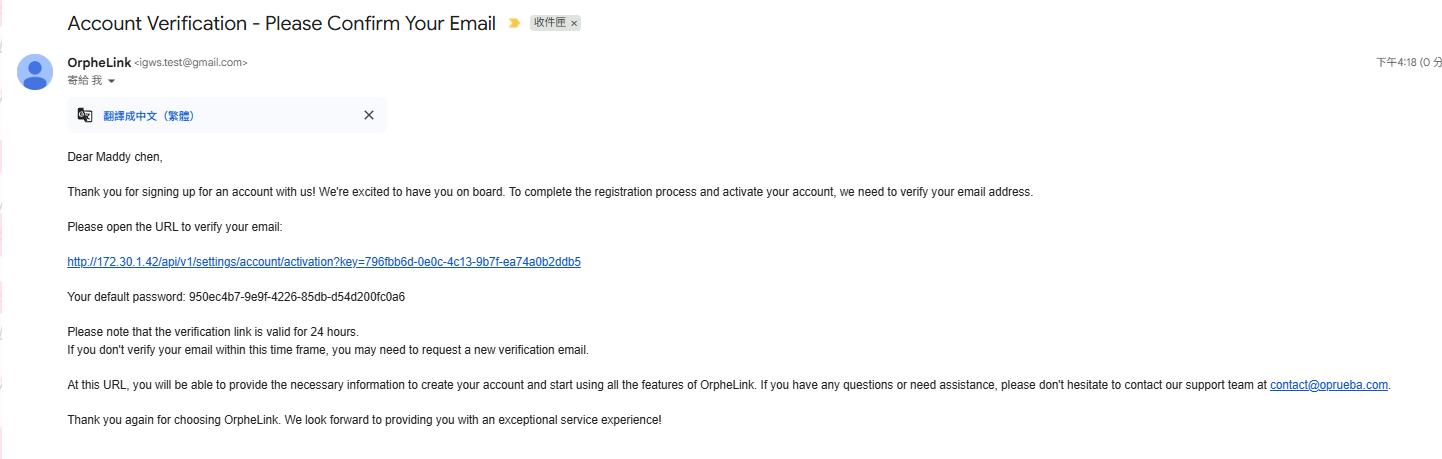
The Business account verification flow uses two emails:
- Open "User Verification – Please Confirm Your Email" to complete user verification.
- Open "Account Verification – Please Confirm Your Email" to obtain the initial password, then sign in with your email address and that password.
- Change the password when prompted during the first sign-in.
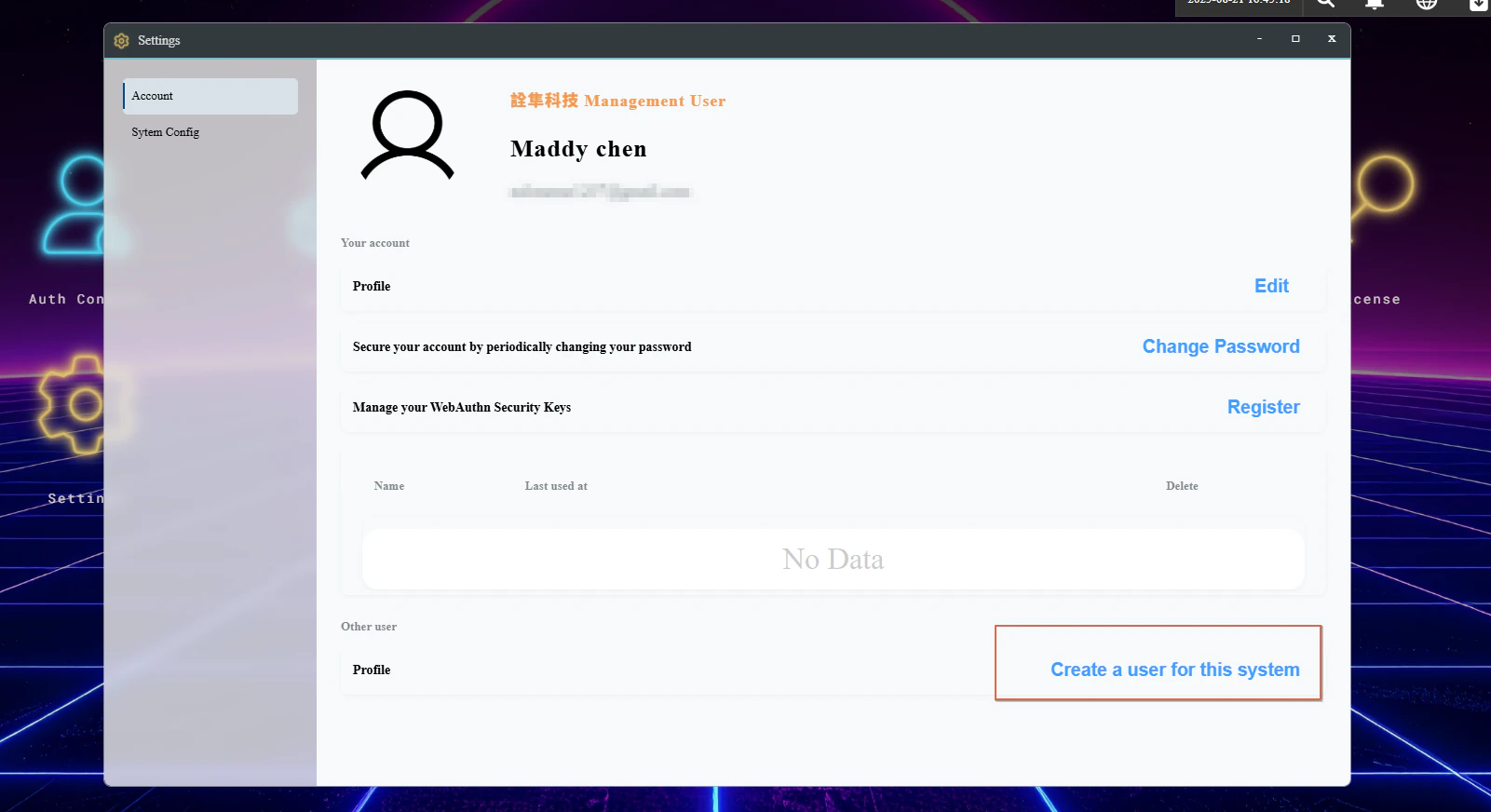
A Business account can create additional users to manage OrpheAgent devices together.
Install OrpheAgent
After the account is ready, download and install OrpheAgent for your device platform.
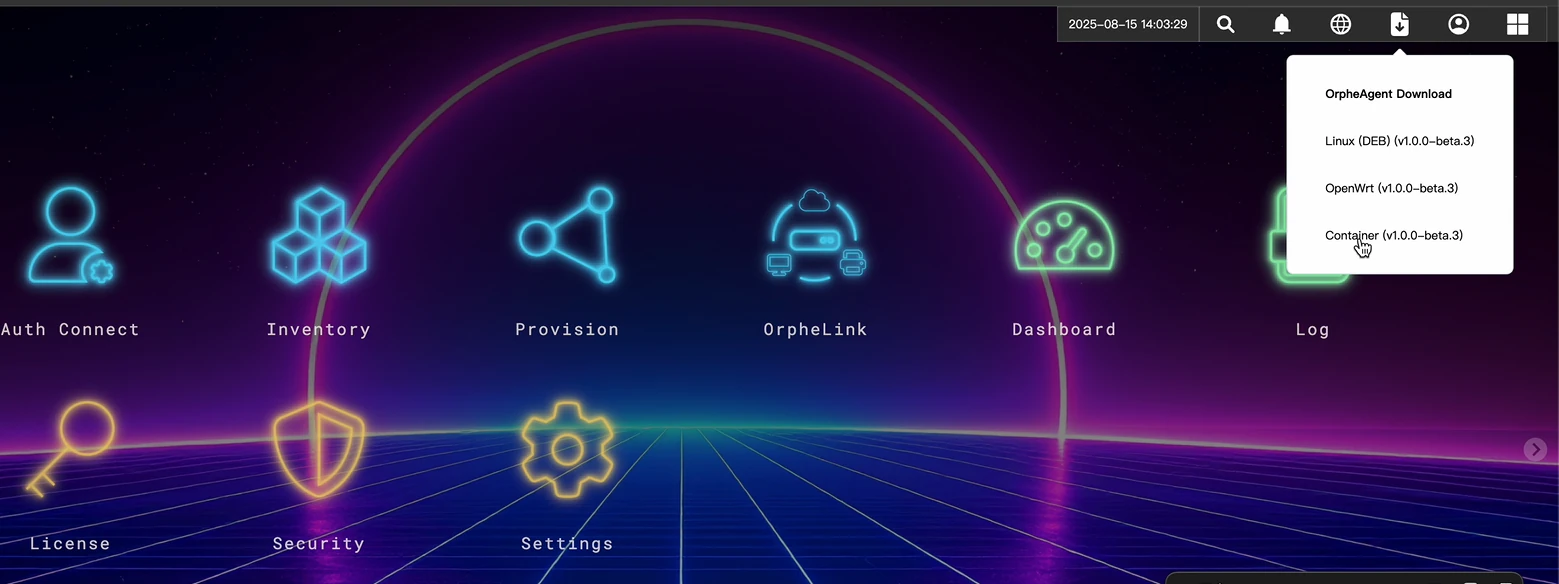
For installation and platform-specific guidance, see the OrpheAgent user manual.
Next Steps
After installation, go to Provision to add the OrpheAgent device to OrpheLink. Once provisioning is complete, use OrpheLink to create P2P connections between OrpheAgent devices.