oosVersion 2.1
Multiple WAN
Multiple WAN
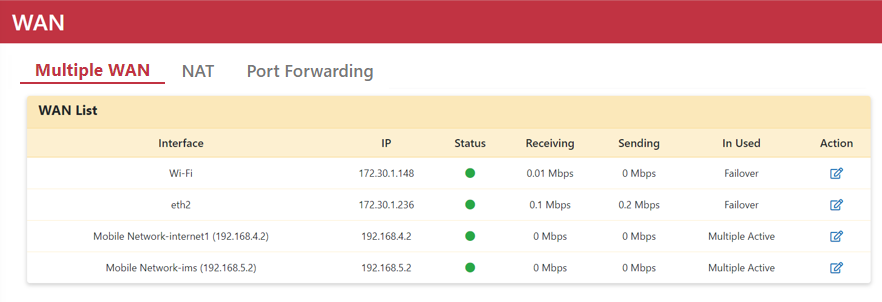
The Multiple WAN page displays real-time connection status for all WAN interfaces, including WAN Interface name, IP Address, Status, Receiving traffic, Sending traffic, and In-Used Mode (Binding, Failover, or Multiple Active).
In-Used Mode Reference
| In-Used Mode | Description |
|---|---|
| Binding | Only a single WAN interface is bound to a specific VLAN. |
| Failover | Two or more WAN interfaces are bound; only one primary WAN connection is active while others serve as redundant backups. |
| Multiple Active | Two or more WAN interfaces are bound to VLAN 1, with all WAN interfaces active simultaneously for traffic load distribution. |
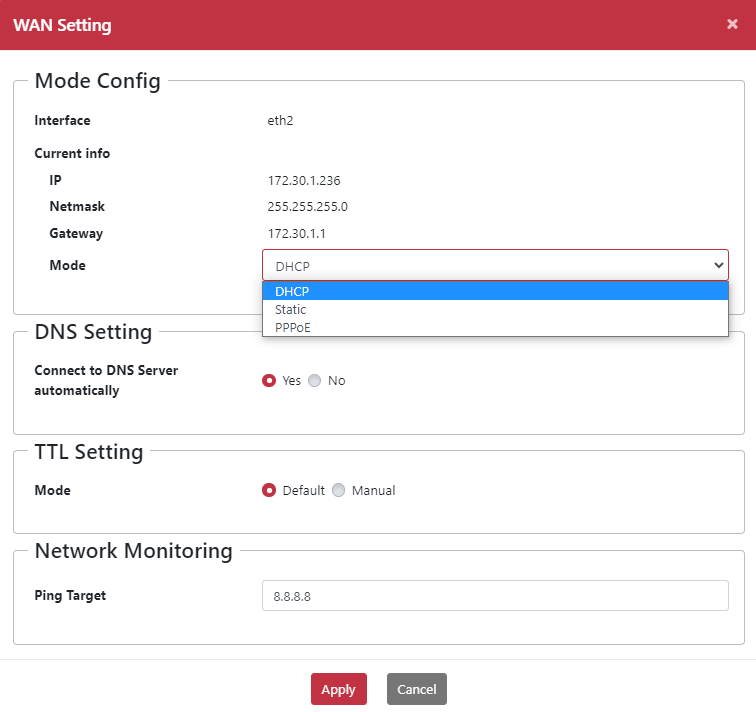
WAN interfaces support obtaining IP addresses via DHCP, Static IP, and PPPoE.
Configuring WAN Interface and Ping Target
The Ping Target feature monitors network connection status. By default, it pings 8.8.8.8. If the device operates within a private network without direct internet connectivity, configure the Ping Target to the IP address of the local network gateway or a specific local device IP.
- Configure the port type as WAN.
- Navigate to Networking > Forwarding > Port Type.
- Select the target interface from the LAN list.
- Click the < icon.
- Click Apply.
- The DHCP server will assign a WAN IP address automatically.
- Navigate to Networking > WAN > Multiple WAN.
- Click the Edit icon to open the WAN settings dialog.
- Select DHCP from the Mode drop-down menu.
- Enter the designated Ping Target Address.
- Click Apply.