Topology
Create and manage Site-to-Site, LAN-to-LAN, and Exit Node connections, including site, node, neighbor, routing, and DNS settings.
OrpheLink provides several core capabilities for building secure and flexible connections across different network environments:
- Site-to-Site Connection: Establishes secure connections between different sites.
- LAN-to-LAN Connection: Connects local networks across different locations.
- Exit Node: Designates a specific node as a traffic exit so other nodes can route traffic through it.
All connections between nodes use TLS 1.3 and QUIC.
To let administrators move from the overall network down to an individual node's connections, OrpheLink uses a three-layer topology. The first layer manages sites, the second shows the nodes inside a site, and the third focuses on a single node's neighbors and routing behavior. The following sections walk through these layers in order.
Layer 1: Site Topology
Site Topology is the first layer of OrpheLink's three-layer topology. Use it to create the overall site structure, assign nodes, configure Tunnel IPs and Exit Nodes, track inter-node tunnels, and view discovered local networks. Click Edit to change node behavior, advanced routing policies, and network bypass rules.
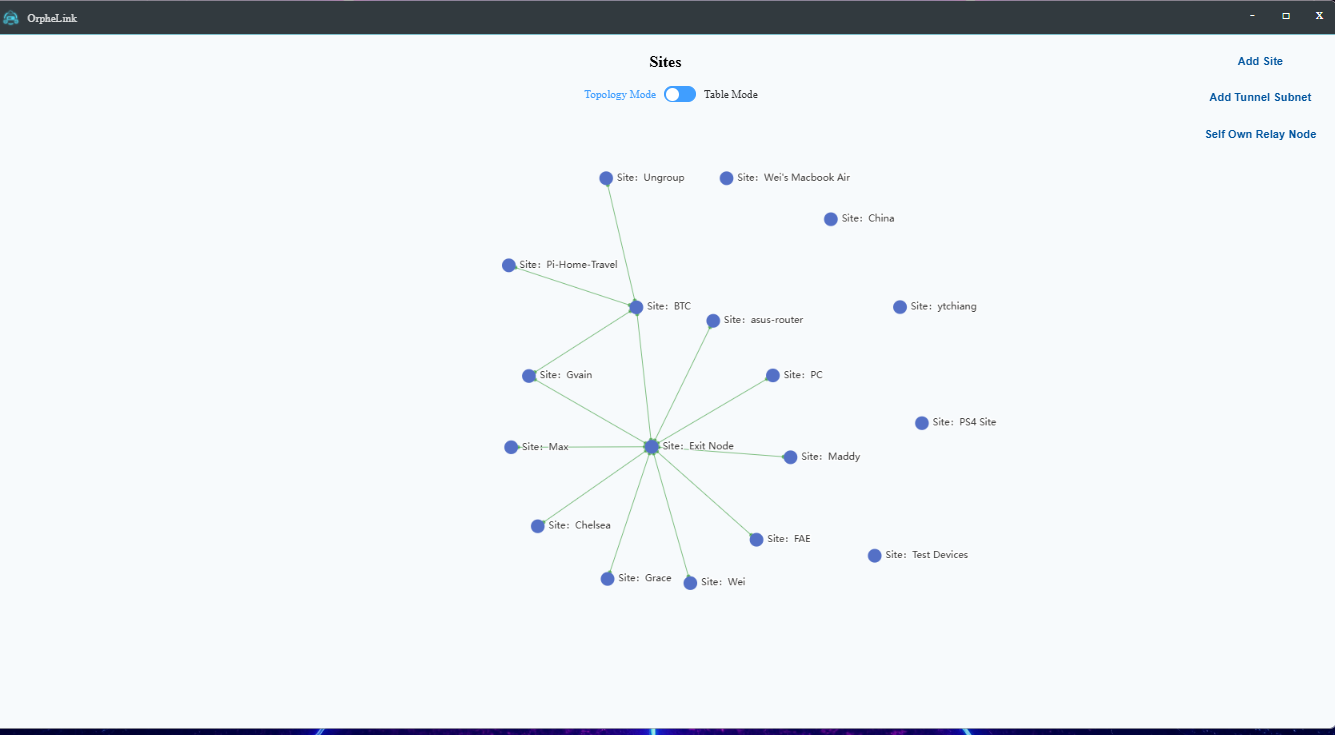
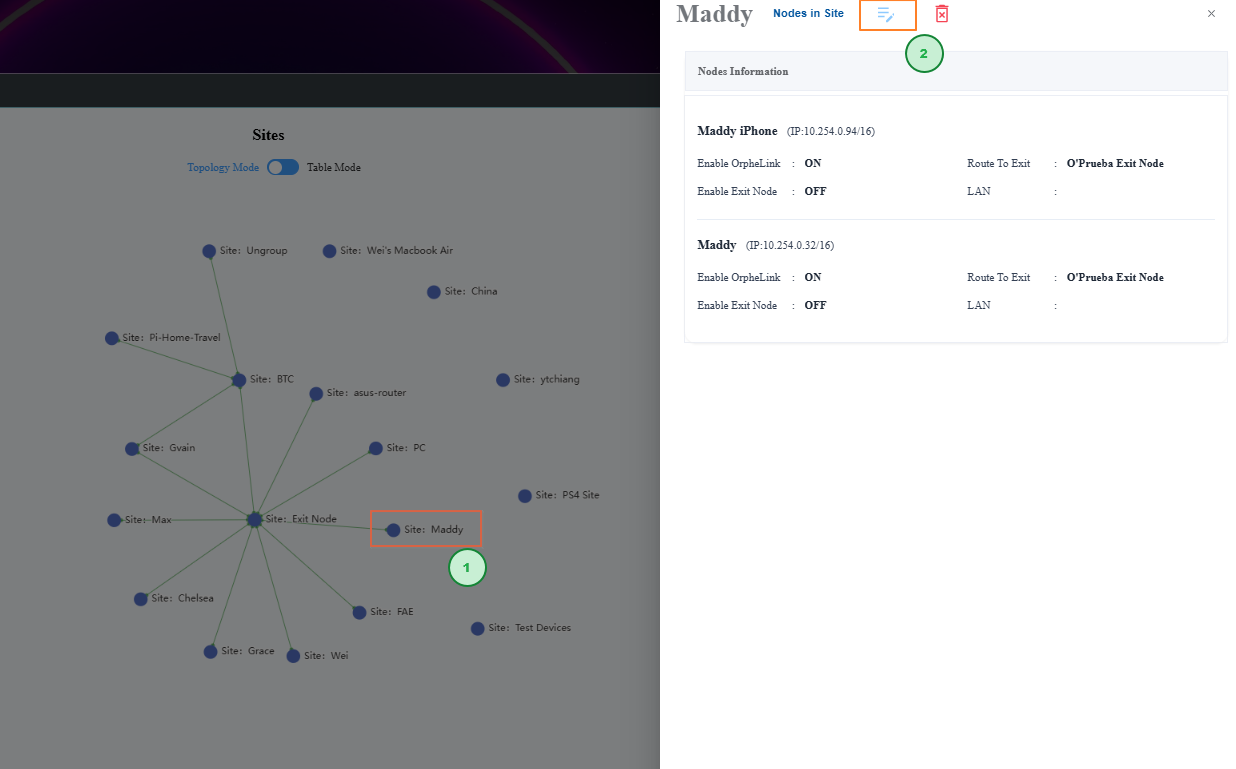
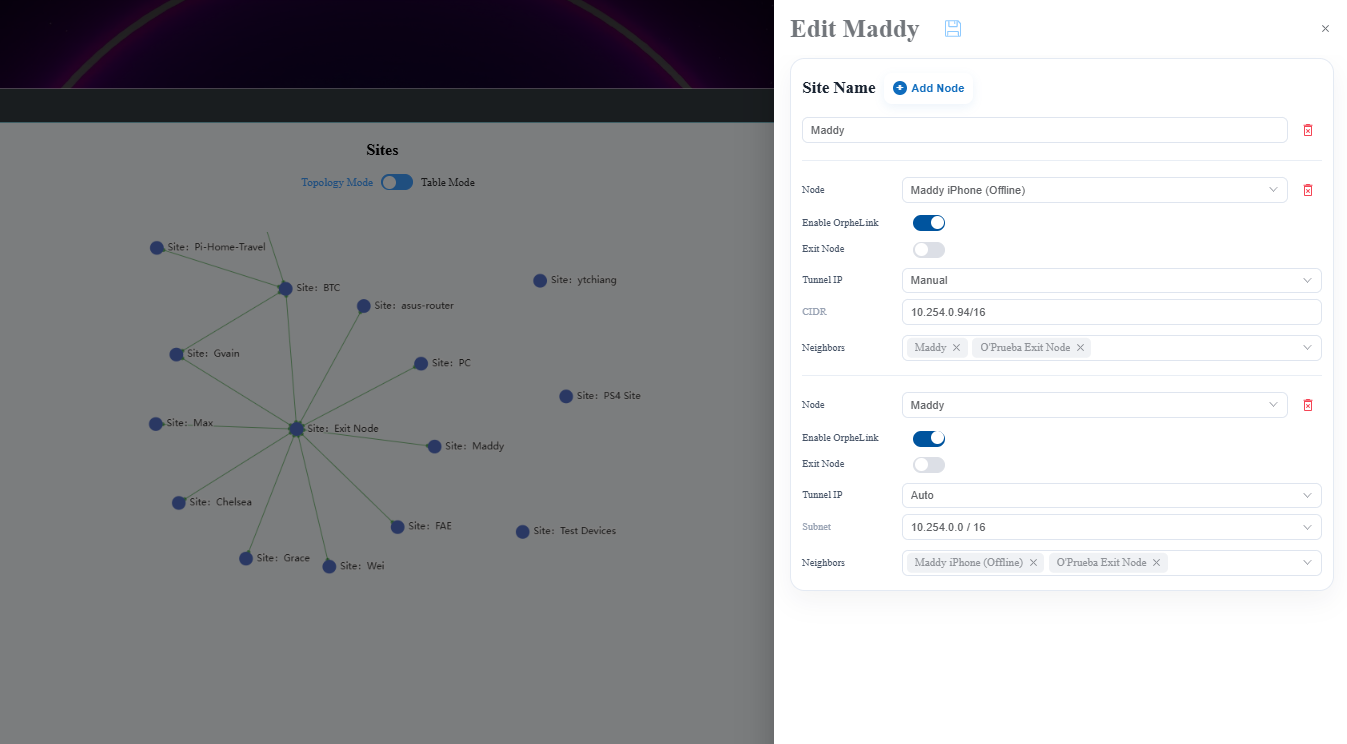
The main settings available at this layer are:
| Name | Description |
|---|---|
| Topology of Site | Displays the current sites and their connections. |
| Add Tunnel Subnet | Creates a tunnel subnet range for the overlay network. When a node's Tunnel IP is set to Auto, OrpheLink allocates an address from this range for its P2P connection. |
| Add Self Own Relay node | Creates a self-hosted relay node with a public IP and configurable transmission rate limits. |
| Add site | Creates a site, assigns nodes, designates an exit node and Tunnel IPs, defines neighbor connections, and adds LANs. |
| Enable OrpheLink | When enabled, the node automatically establishes its P2P connection after a restart. When disabled, the connection must be established manually after a restart. |
| Exit node | Designates the node as an exit point. Nodes with Route to Exit enabled send their traffic through this exit node before it is forwarded. |
| SNAT | Appears only when Exit Node is enabled. Enabling SNAT masks internal source IPs behind the exit node for plug-and-play connectivity. Disabling it preserves original device IPs so upstream firewalls can perform granular traffic auditing. |
| Tunnel Subnet / Tunnel IP | Defines the virtual CIDR range used for internal P2P routing. Auto lets the system allocate addresses to prevent conflicts; Manual lets you specify the CIDR. |
In the site topology, the following icons distinguish sites, exit nodes, regular nodes, and clients:
| Type | Icon |
|---|---|
| Site |  |
| Exit node |  |
| Node |  |
| Clients |  |
Layer 2: Nodes in Site
Nodes in Site is the second layer of OrpheLink's three-layer topology. Click Nodes in Site to list every managed node assigned to the site. Hover over or select a node to view its live status, and click Edit to configure node behavior, advanced routing policies, and network environment rules.
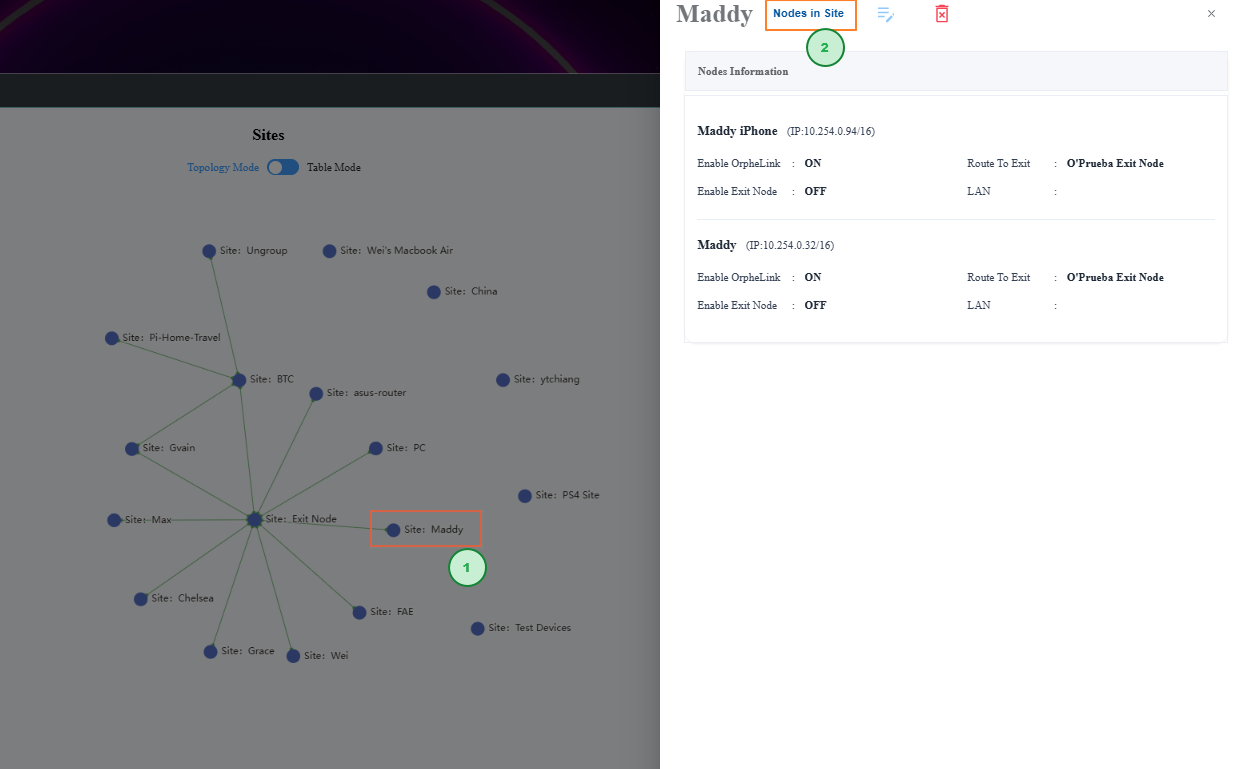
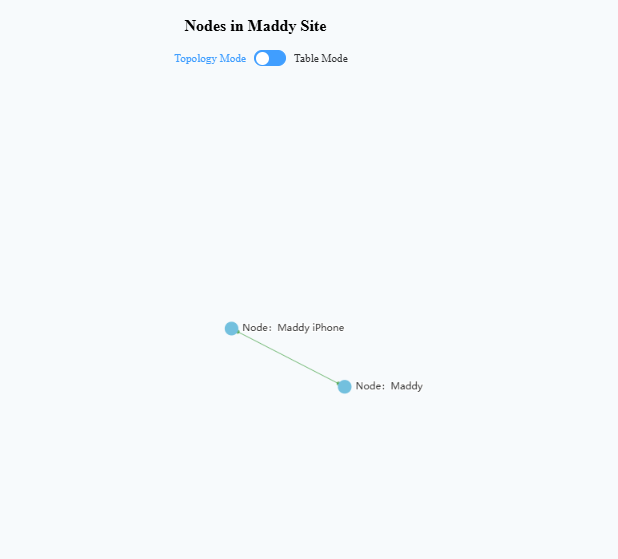
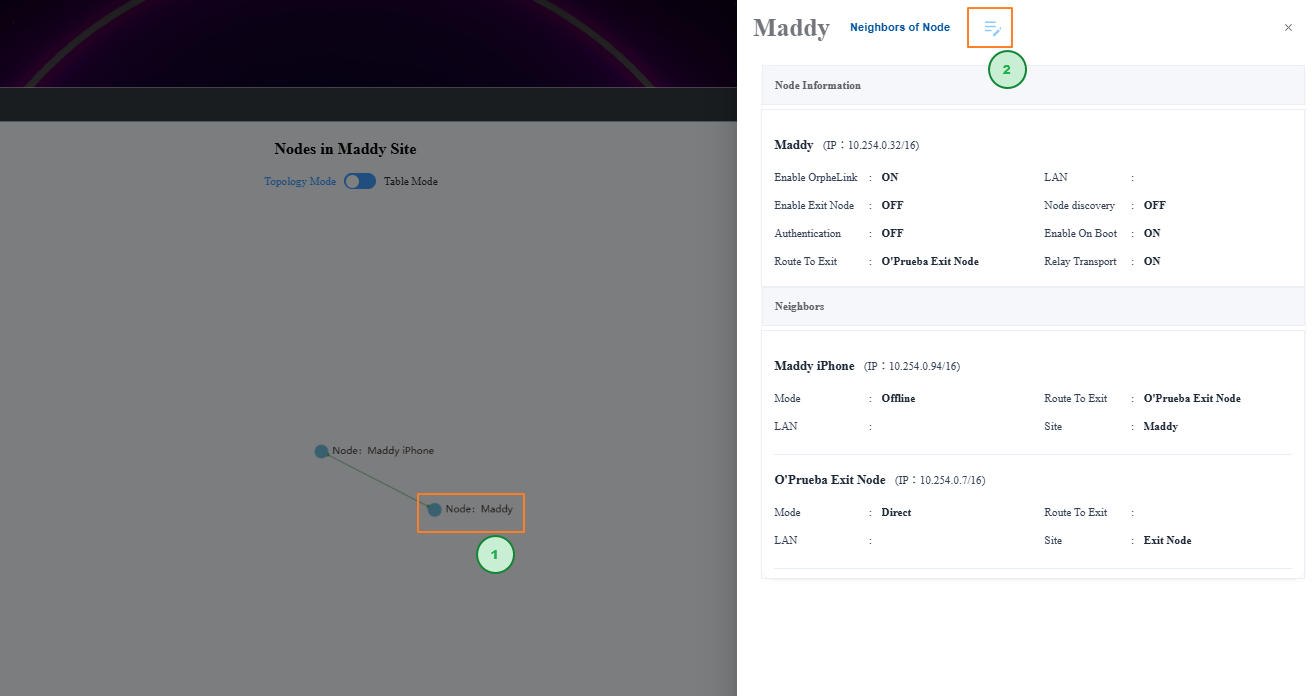
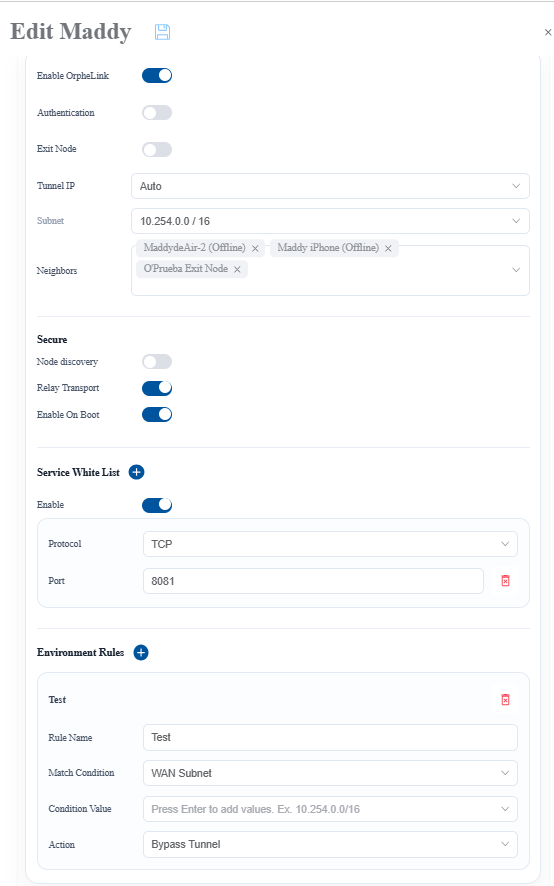
The main node settings available at this layer are:
| Name | Description |
|---|---|
| Enable OrpheLink | Controls data-plane connectivity. On by default, it activates all secure P2P tunnel links. Turning it off suspends P2P communication while leaving the control plane active, so the node remains manageable from the dashboard. |
| Authentication to Access | Enforces zero-trust access. Cross-node access is intercepted by a dynamic login page, and users must authenticate before reaching the node. |
| Node discovery | Enabling it improves NAT traversal, but a firewall may flag the resulting connection as suspicious. When disabled, NAT traversal uses an O'Prueba relay node or a customer-owned relay node. |
| Relay Transport | When enabled, traffic can be forwarded through a relay node if a direct connection fails. When disabled, relay forwarding is not allowed. |
| Enable On Boot | Controls tunnel behavior after a device restarts or powers on. On by default, it restores the P2P connection automatically. When disabled, tunnels remain offline after startup. |
| Service White List | Configures allowed TCP or UDP service ports, such as Remote Desktop, SSH, or web applications. When enabled, only listed ports can communicate between devices, reducing unnecessary network exposure and strengthening SD-WAN security. |
| Environment Rules | Configures a WAN Subnet Bypass Rule for split tunneling. For example, traffic from a branch office at 172.16.1.x to headquarters at 10.10.1.x can continue over an existing VPN instead of the OrpheLink tunnel. |
Layer 3: Neighbor of Node
Neighbor of Node is the third layer of OrpheLink's three-layer topology and focuses on a single node's connections. Use it to inspect peers, configure Route to Exit, select a route mode, and apply custom DNS settings.
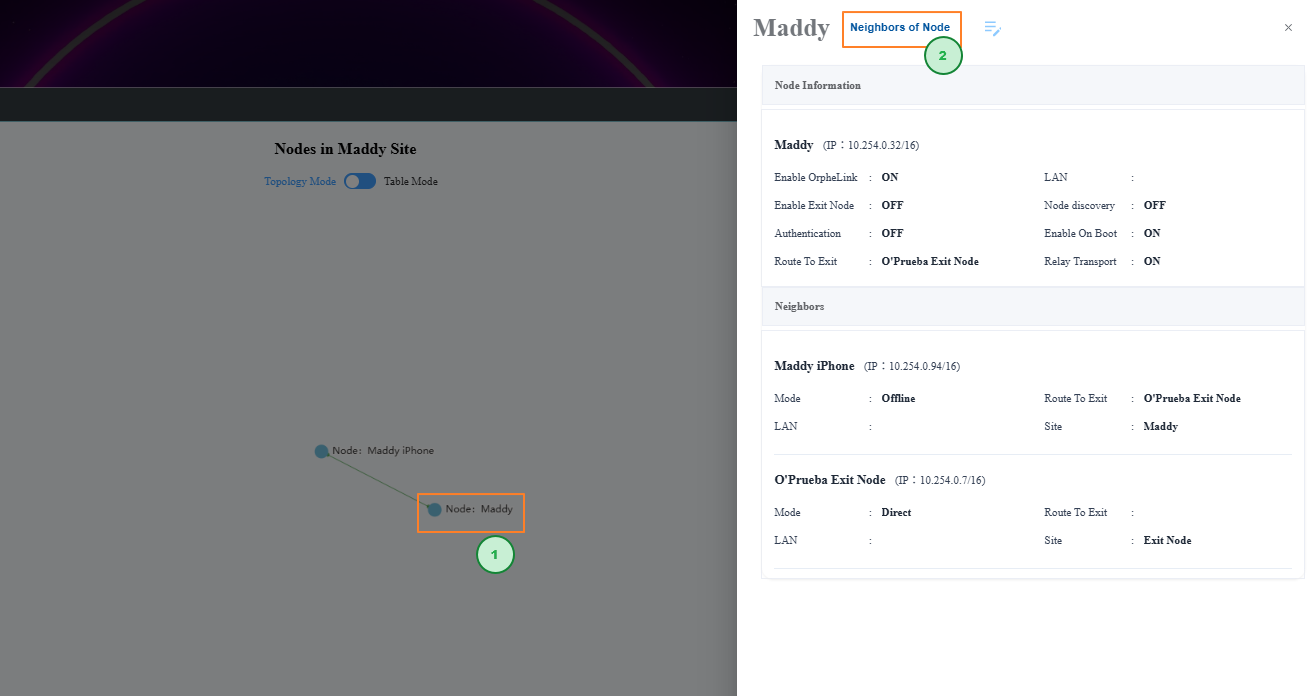
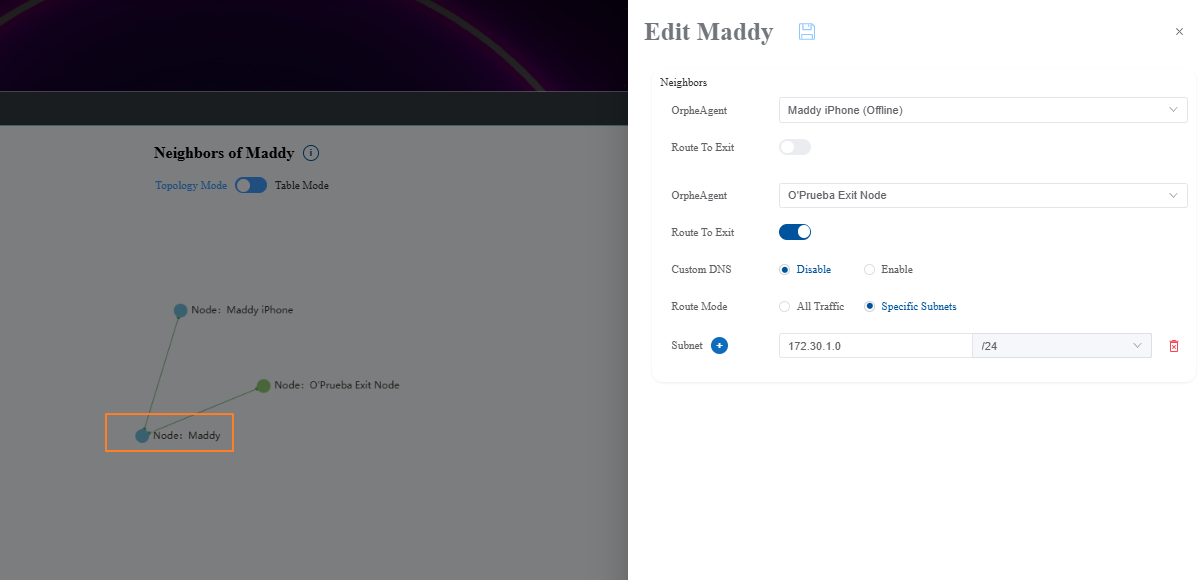
The main connection and routing settings available at this layer are:
| Name | Description |
|---|---|
| Neighbors | Displays the peers connected to the selected node. |
| Route to Exit | Select an exit node and enable this option to route device traffic through that specific gateway. |
| Route Mode | All Traffic sends all network traffic through the exit node. Specific Subnets sends only the subnet ranges you define. |
| Custom DNS | Available only in All Traffic mode. When enabled, custom DNS settings are sent and applied to the node; deleting the Link also removes those settings from the device. Disabling it stops custom DNS propagation. |
Setup Scenario
After understanding the three topology layers, the following cross-site example shows how they come together in an actual deployment. Consider devices in different locations, even across different countries, whose clients are behind NAT and use private IP addresses. Using OrpheLink, these devices can communicate securely through a tunnel, enabling direct data transfer across NAT boundaries.
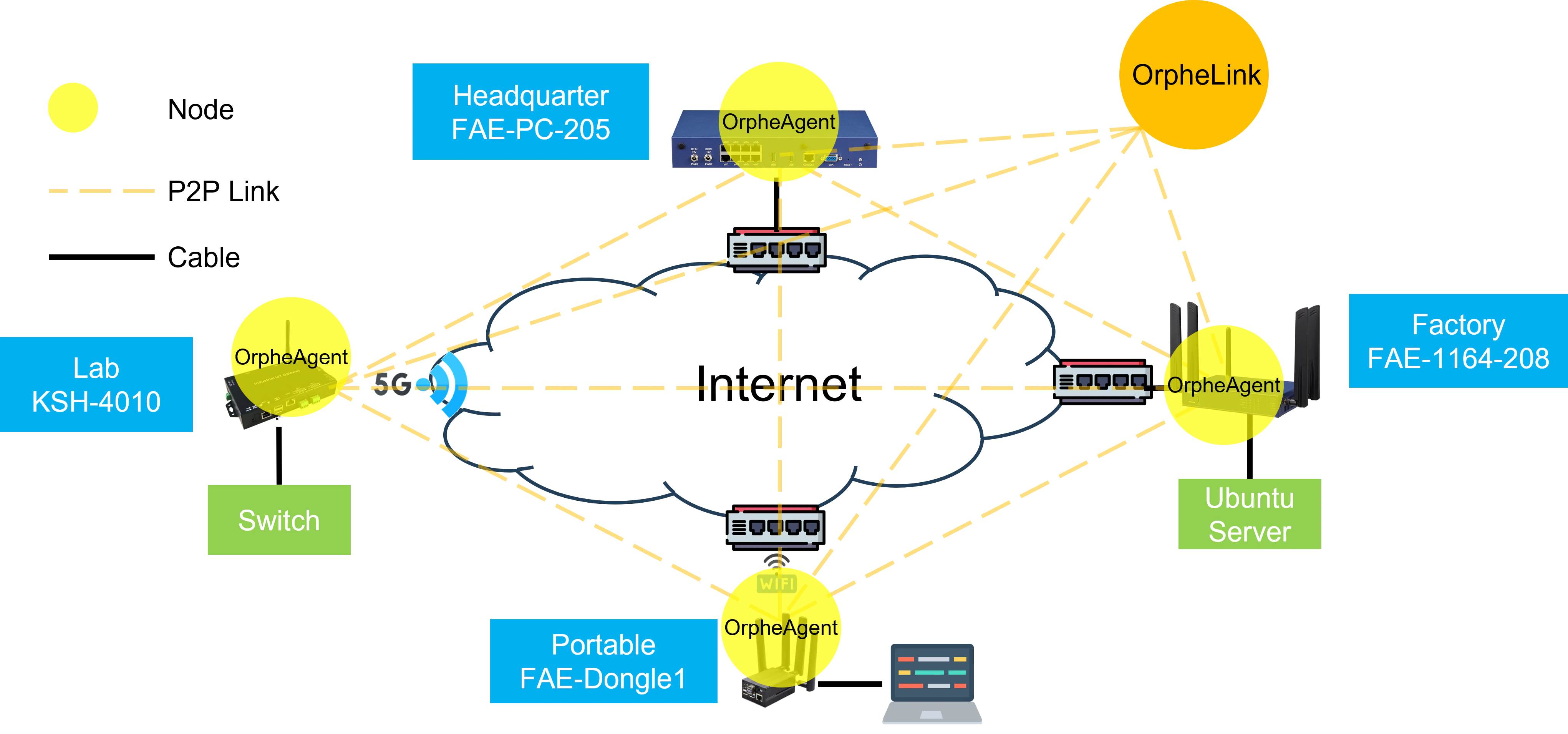
| Location | Name | Agent Type | WAN IP | LAN | Client |
|---|---|---|---|---|---|
| HQ | FAE-1164-208 | Binary | Cable; 192.168.100.74 | 192.168.208.0/24 | Ubuntu 24.04 Server; 192.168.208.2 |
| Lab | KSH-4010 | Container | 5G Network; 10.139.28.25 | 192.168.1.0/24 | EstiNet Switch; 192.168.1.200 |
| Factory | FAE-PC-205 | Container | Cable; 172.30.1.205 | N/A | N/A |
| Portable | FAE-Dongle1 | Binary | Wi-Fi; 192.168.210.6 | 192.168.106.0/24 | Laptop MSI |
Configuration Steps
- Log in to OrpheLink and open Inventory.
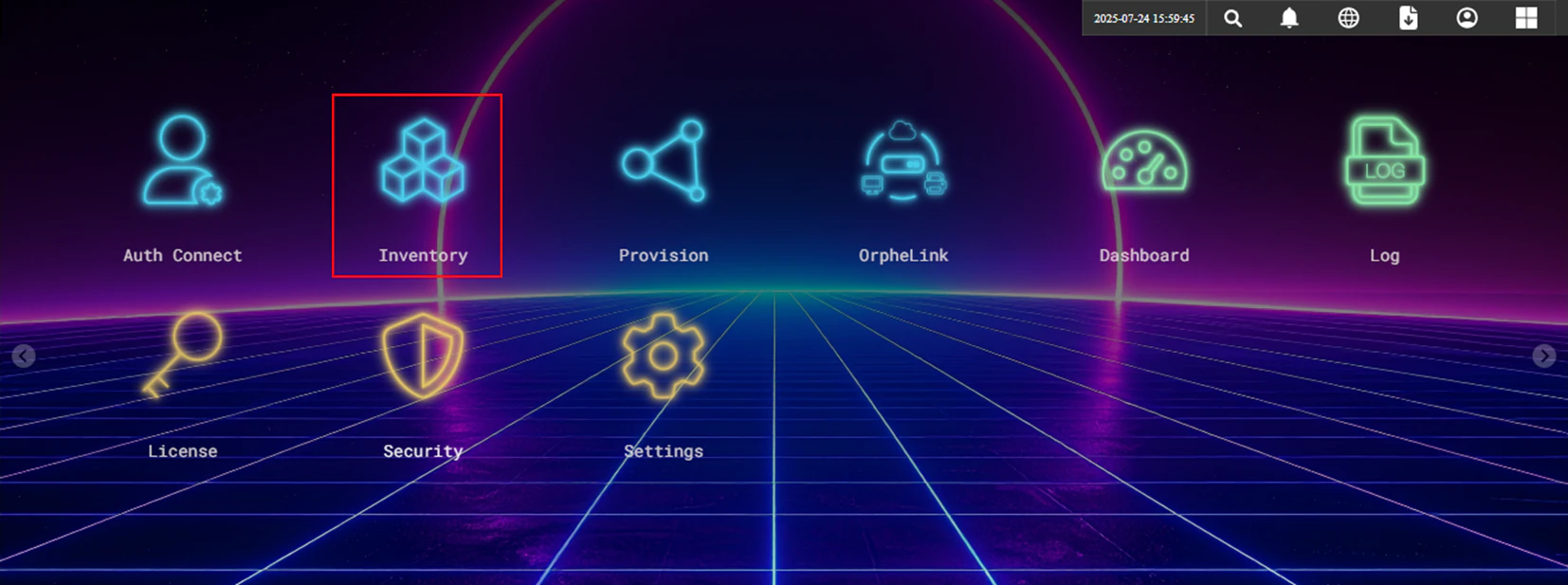
- Verify that your OrpheAgent devices are listed.
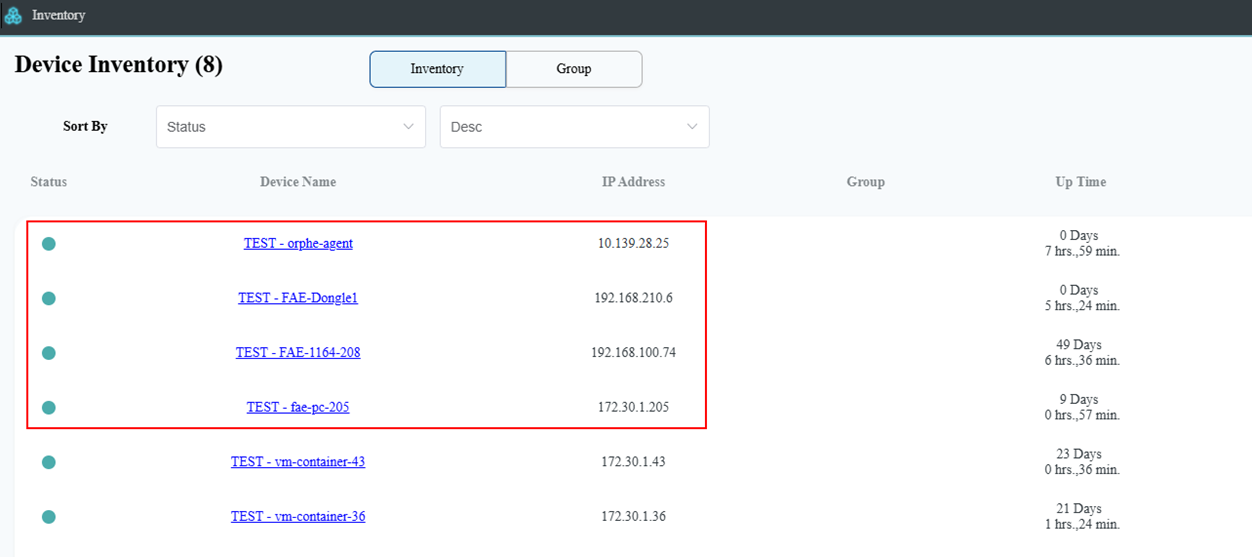
- Click the OrpheLink icon to configure links.
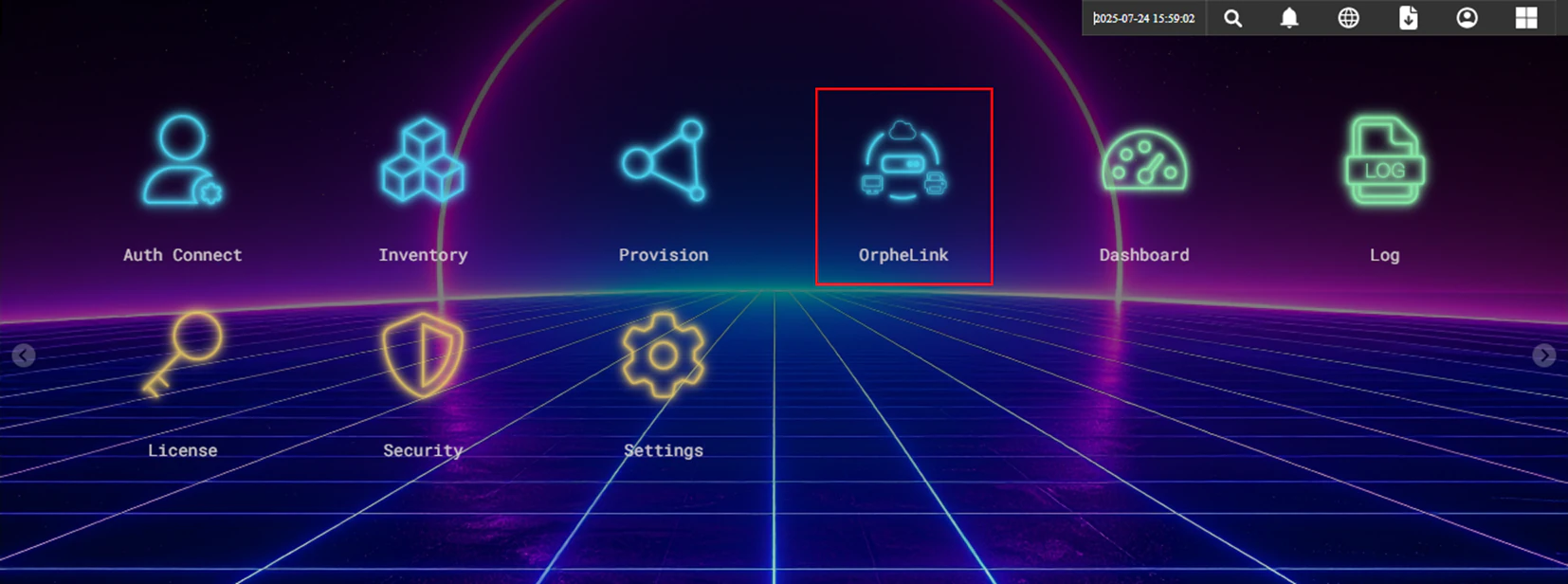
!NOTE Any OrpheAgent devices that have not yet been configured will be placed in the Ungroup site by default.
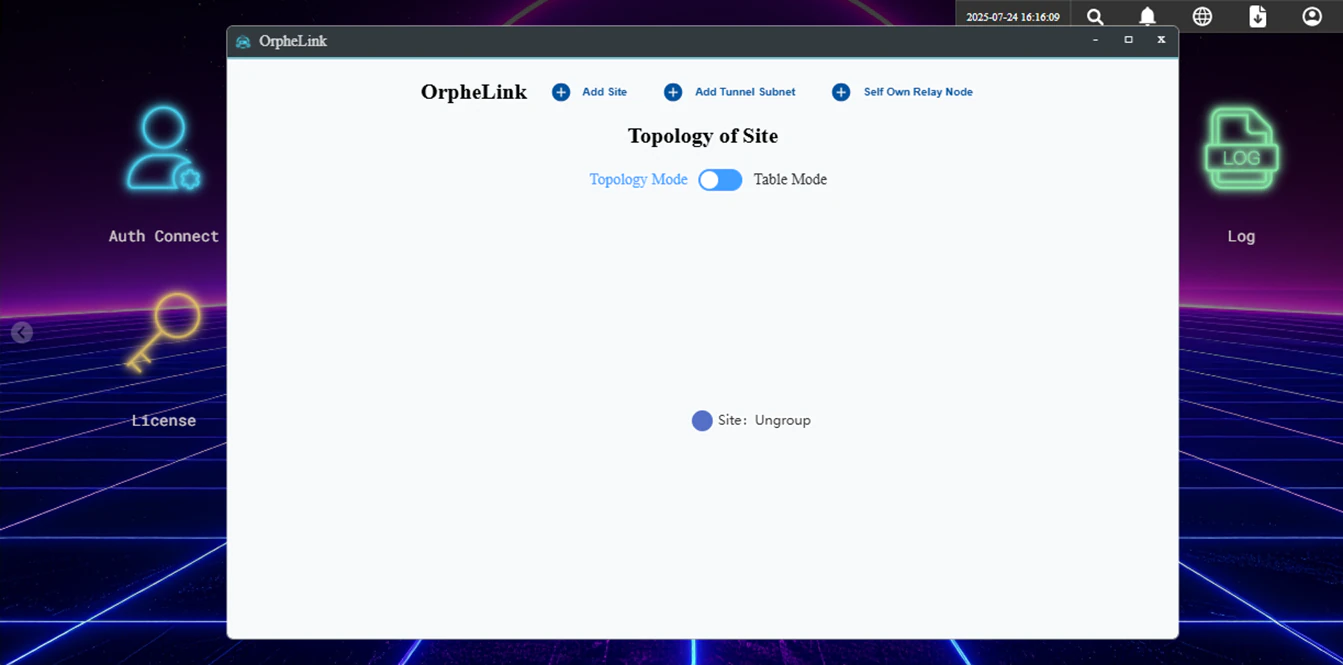
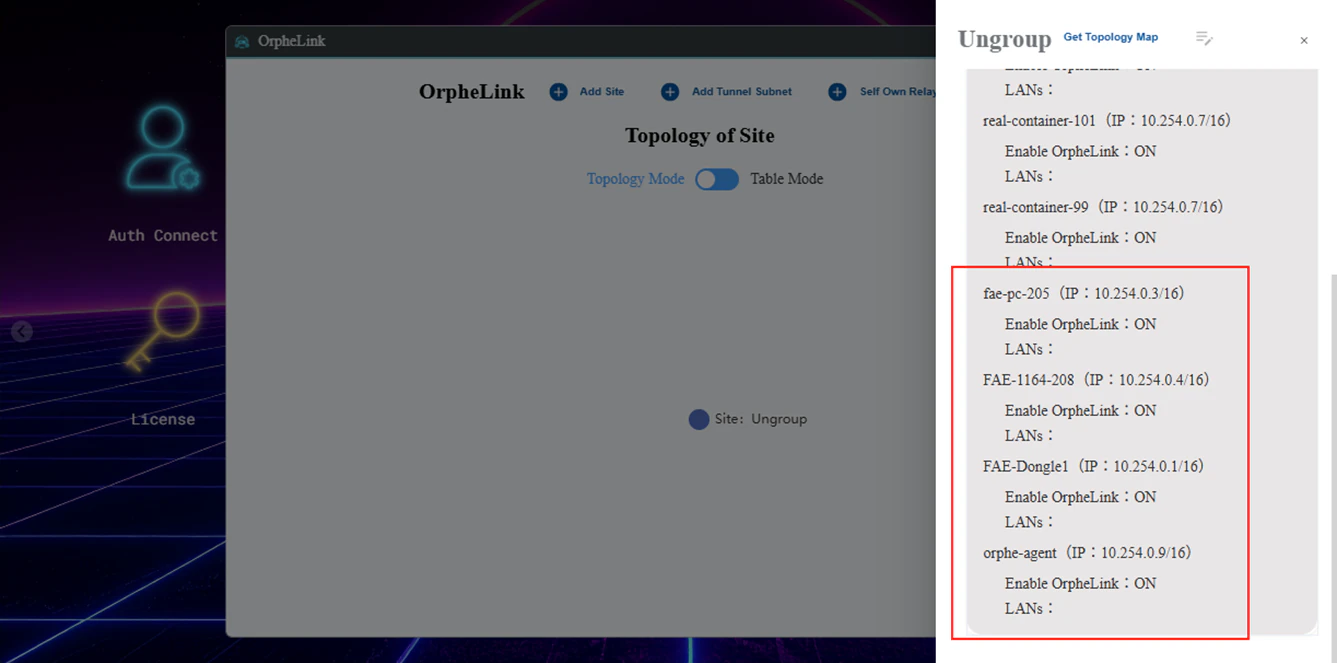
- Click on the Ungroup icon to see the number of OrpheAgent devices inside.
- Click Add site.
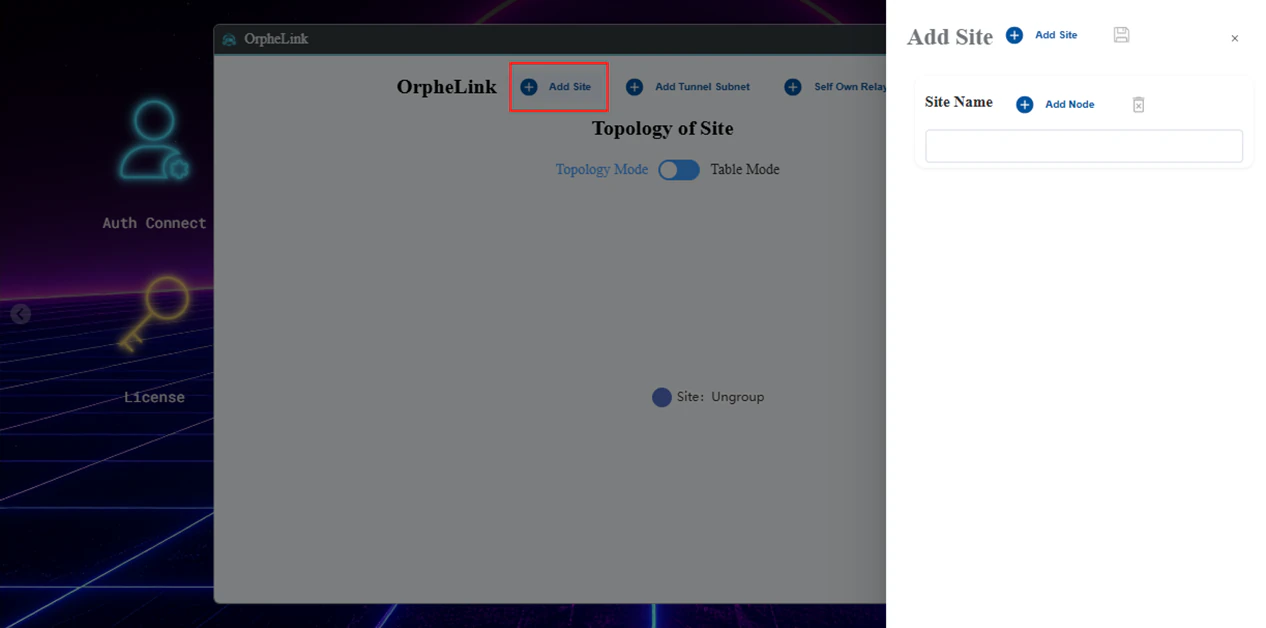
- Add four sites named
HQ,Lab,Factory, andPortable, then click Save.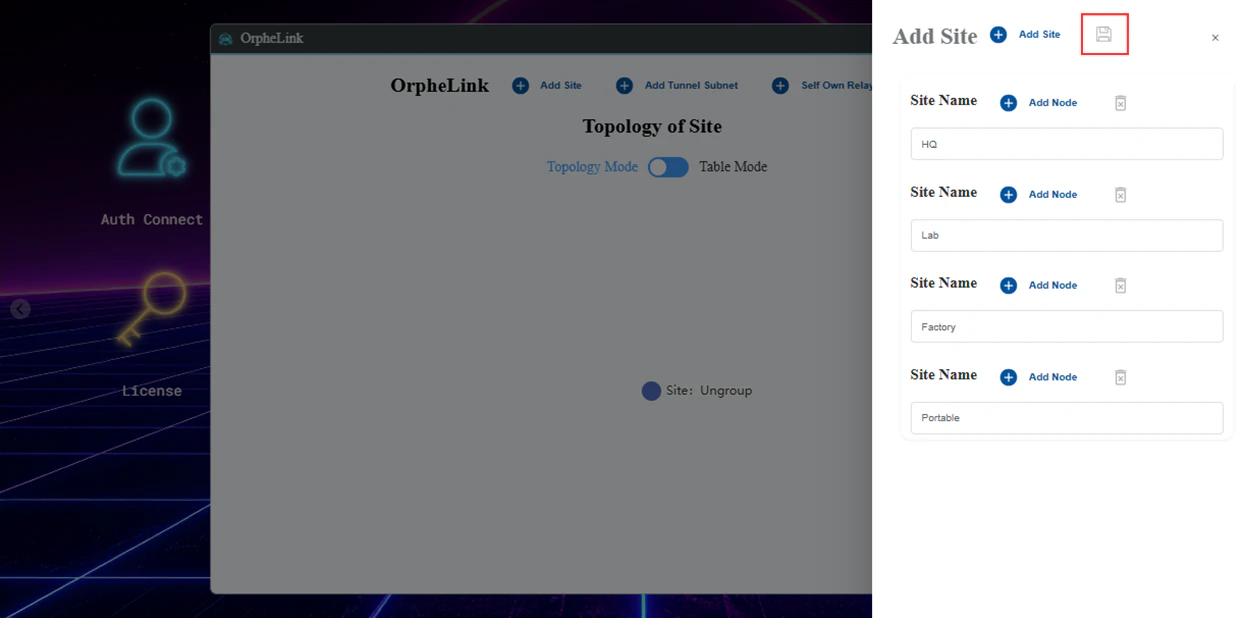
- Click the
HQsite and then click the Edit icon to add a node.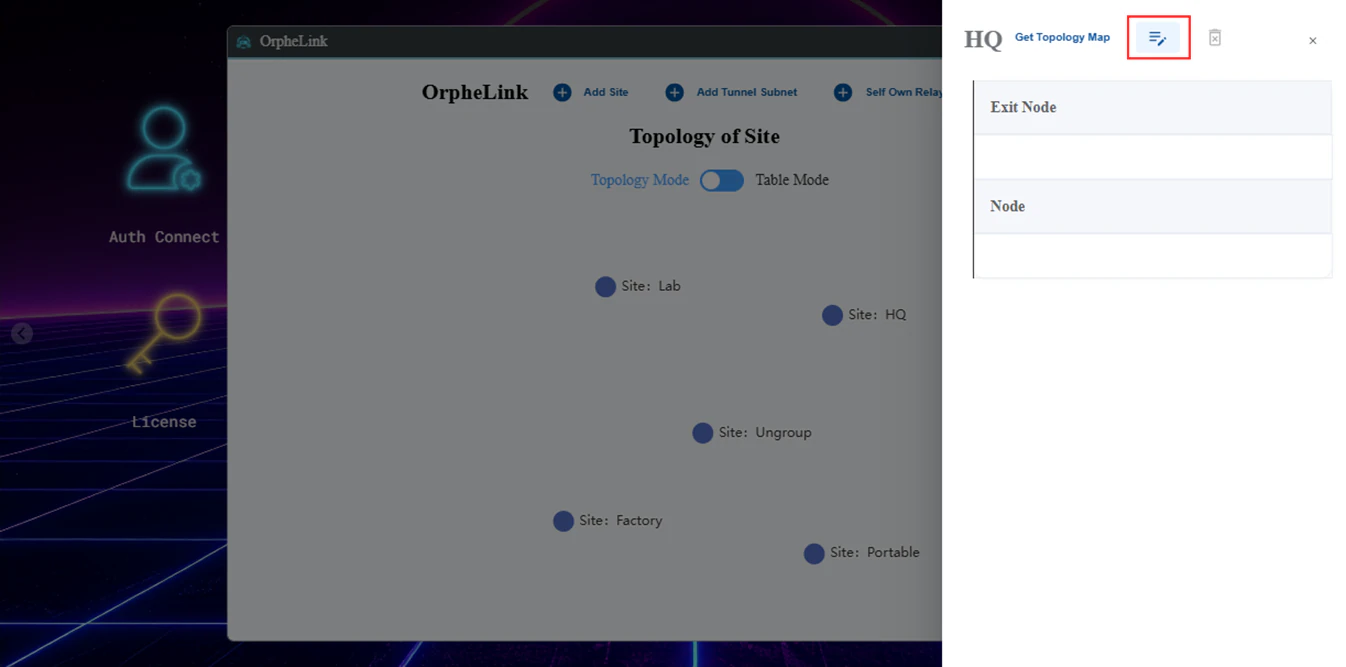
- Click Add Node to add an OrpheAgent device and configure its connections.
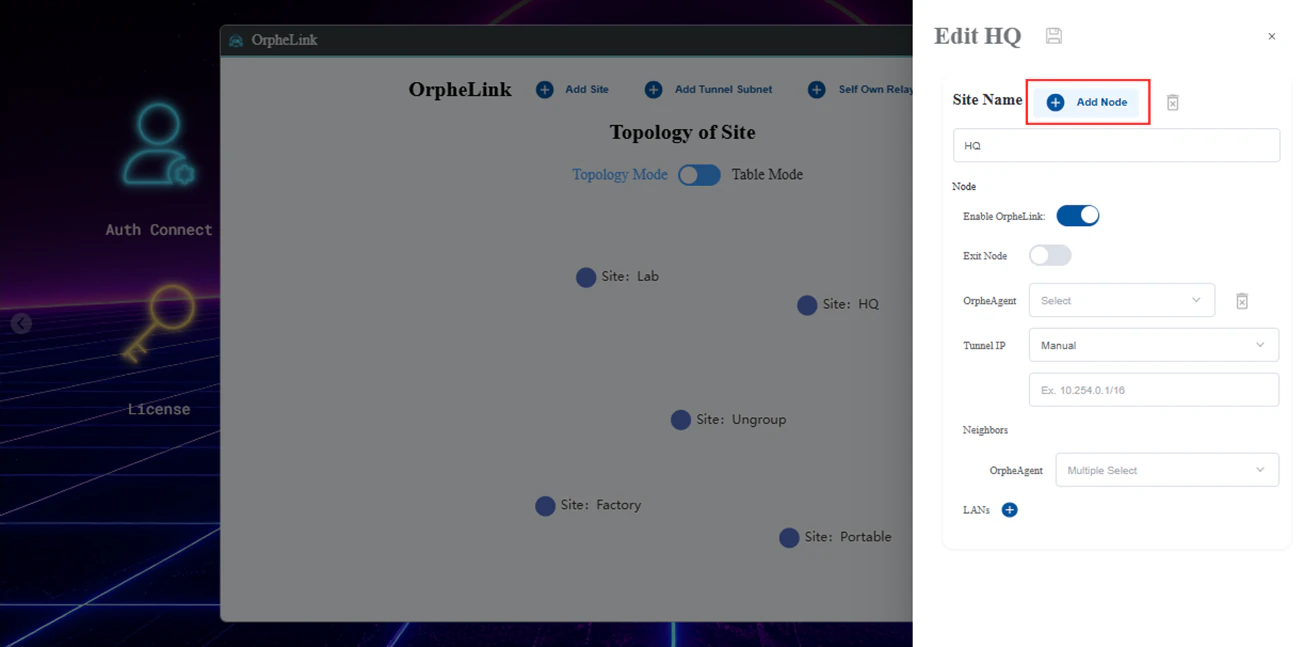
- Choose
FAE-1164-208from the OrpheAgent list.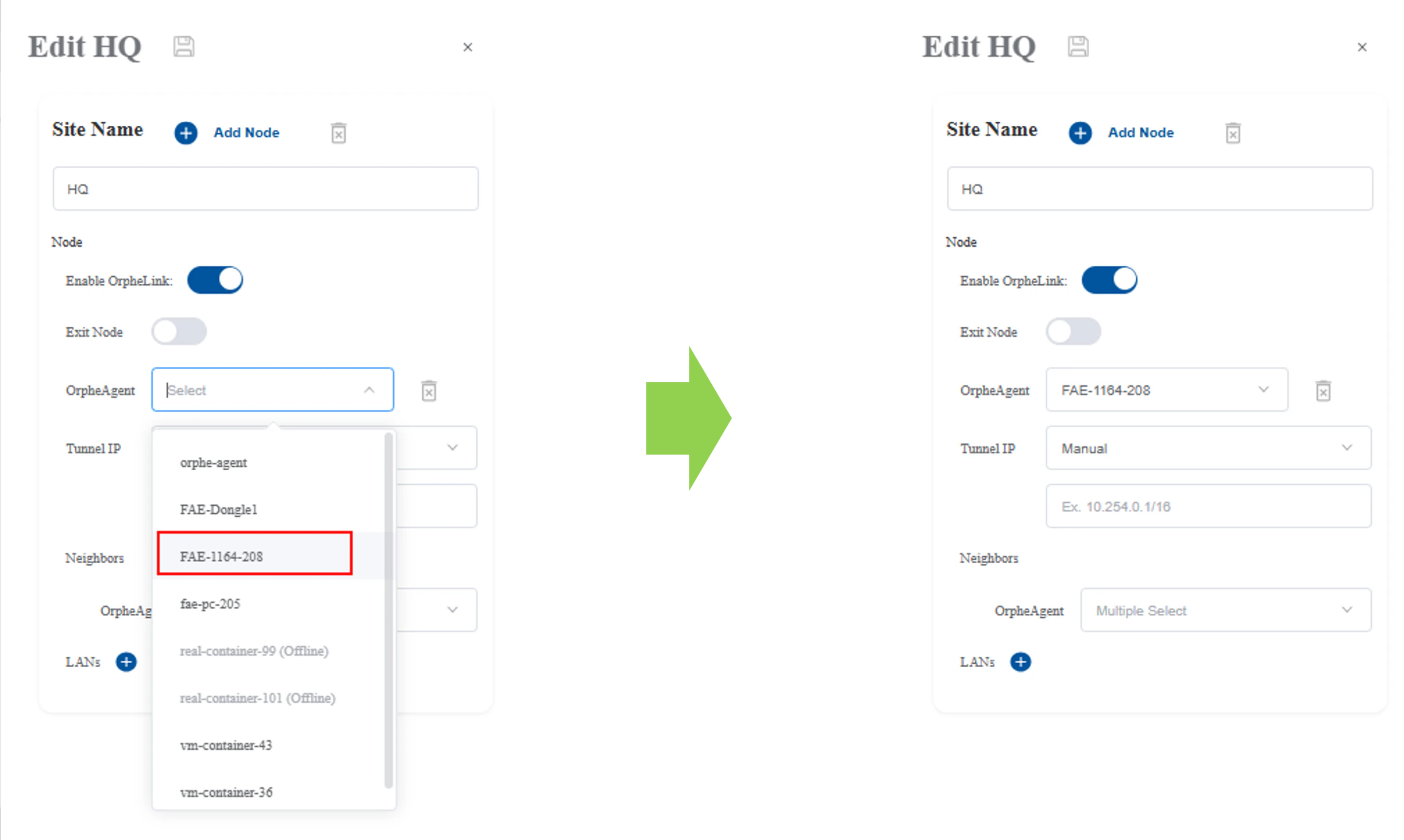
- Set the Tunnel IP to
Autoand select a tunnel subnet.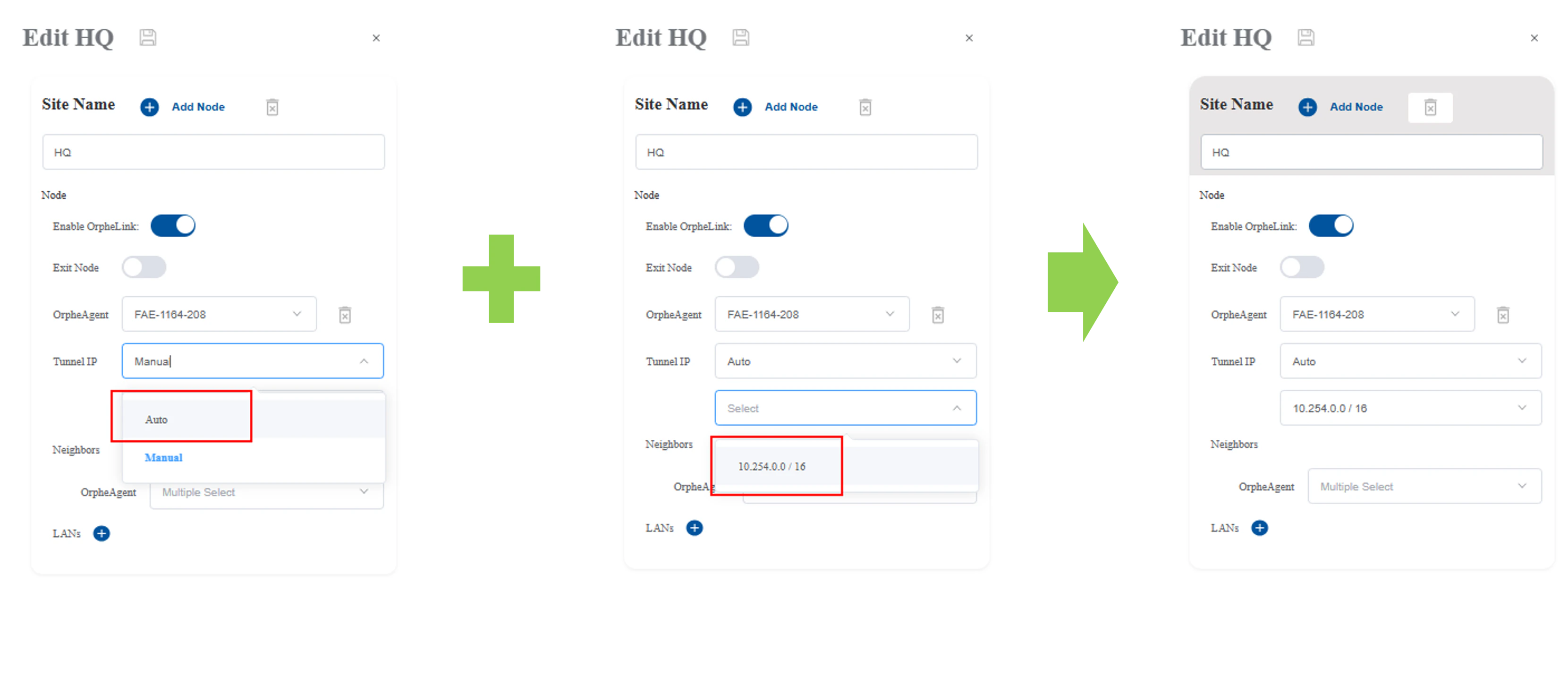
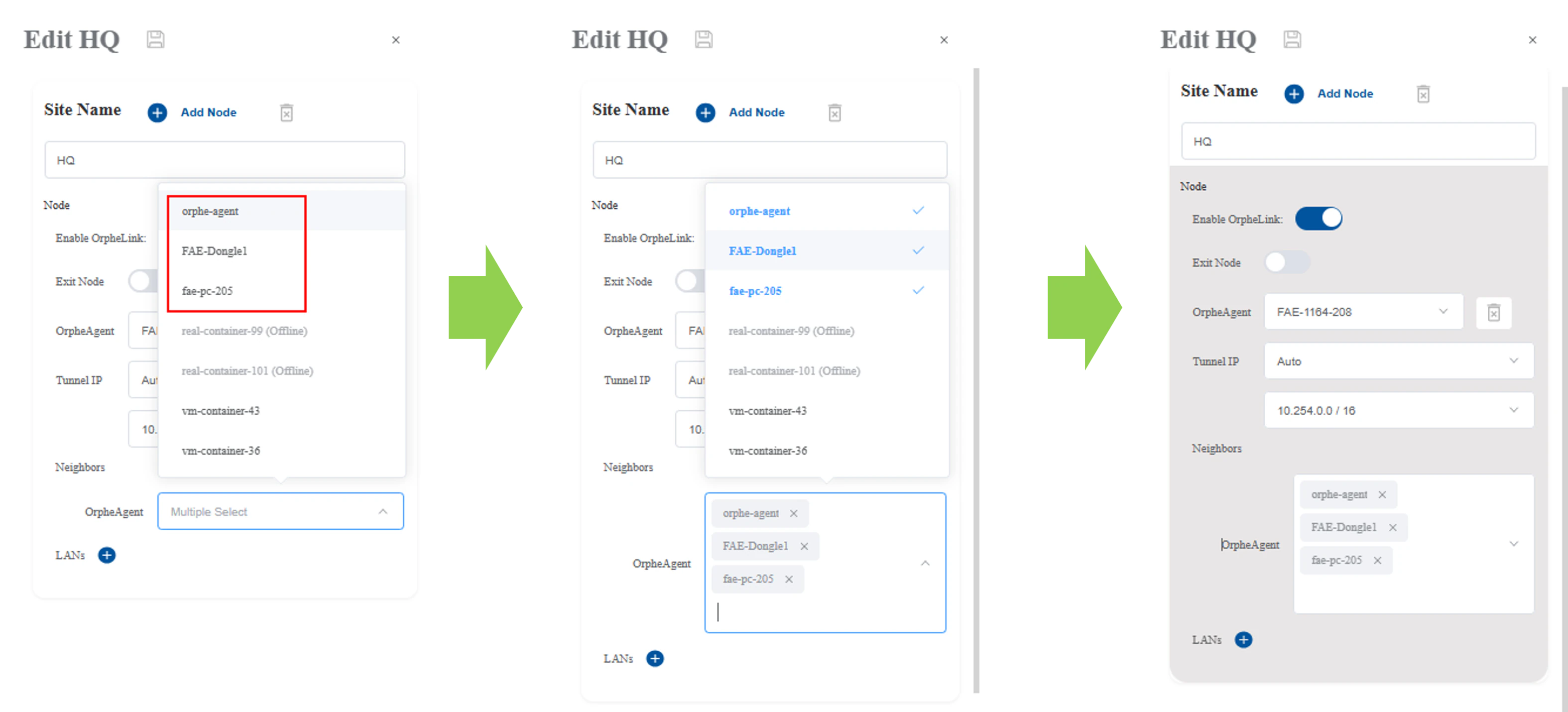
- Click Add neighbors to choose which OrpheAgent nodes to connect to.
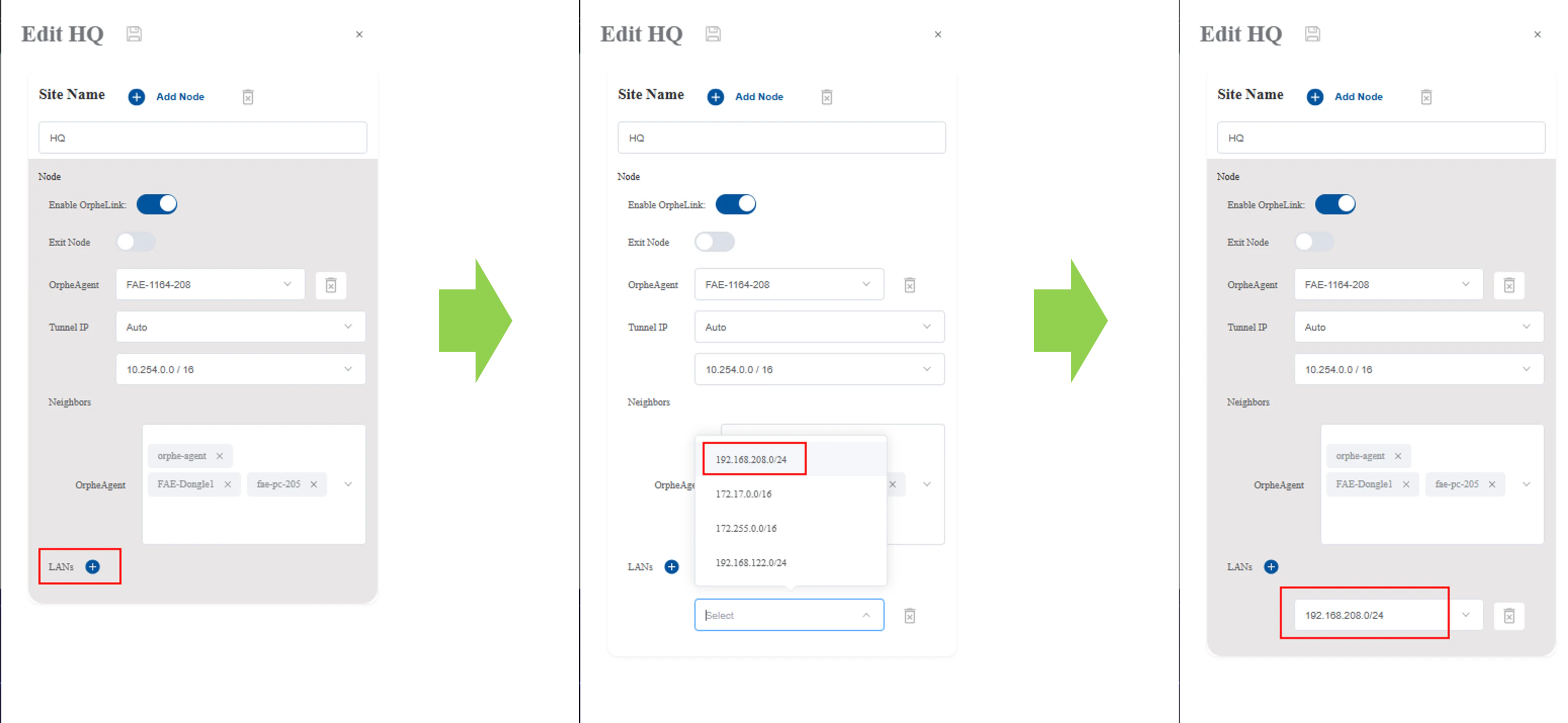
- Click Add LANs and select the appropriate networks from the dropdown list. This configures a LAN-to-LAN connection, allowing endpoint devices to access remote OrpheAgent devices.
- Click the Save icon.
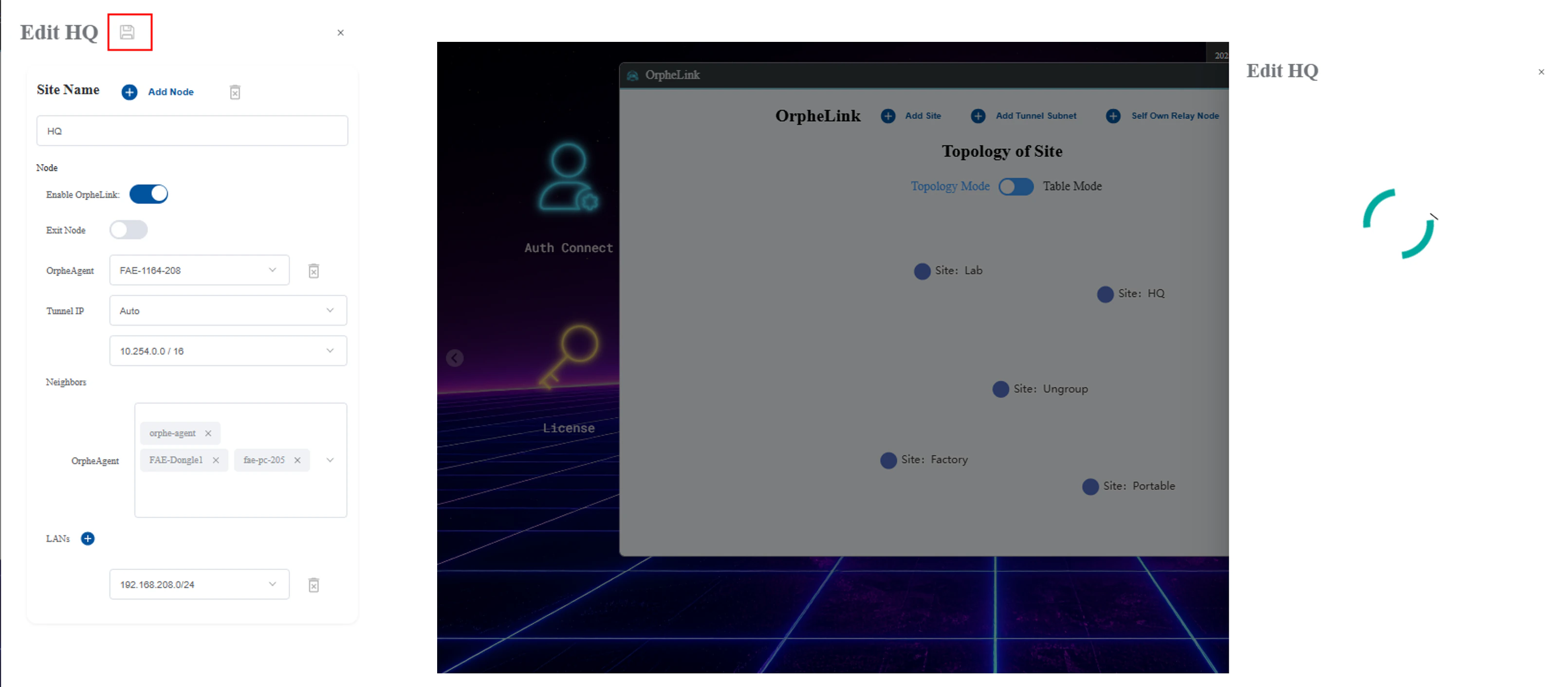
The connection between theHQsite and theUngroupsite occurs because nodeFAE-1164-208is assigned toHQ, while its neighbors (FAE-Dongle1,KSH-4010, andFAE-PC-205) remain in theUngroupsite.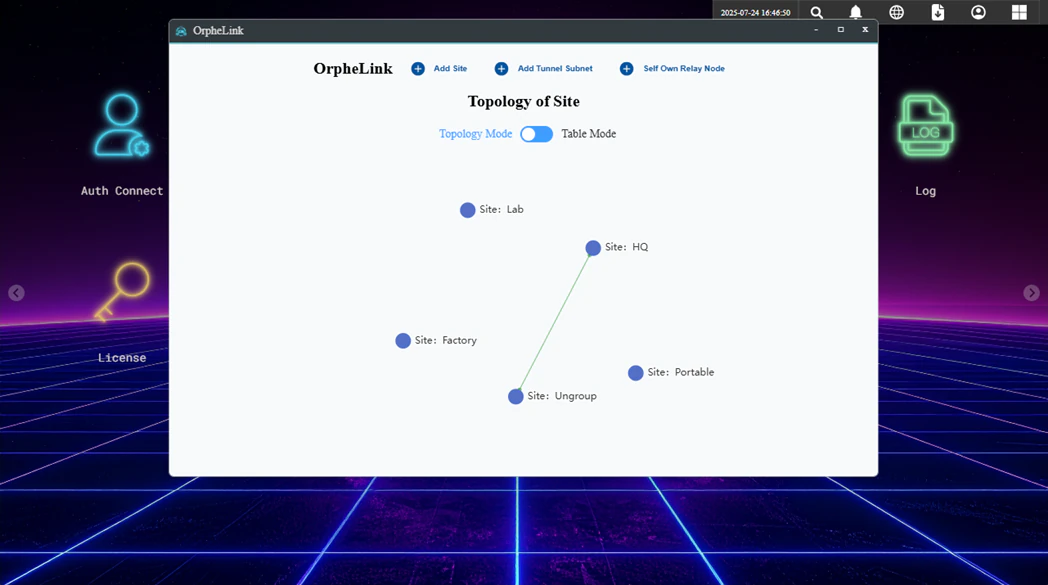
- Configure the remaining sites and nodes using the same procedure:
- Lab: Add node
KSH-4010. Add neighbor nodes and configure LAN connections. - Factory: Add node
FAE-PC-205. Add neighbor nodes. - Portable: Add node
FAE-Dongle1. Add neighbor nodes and configure LAN connections.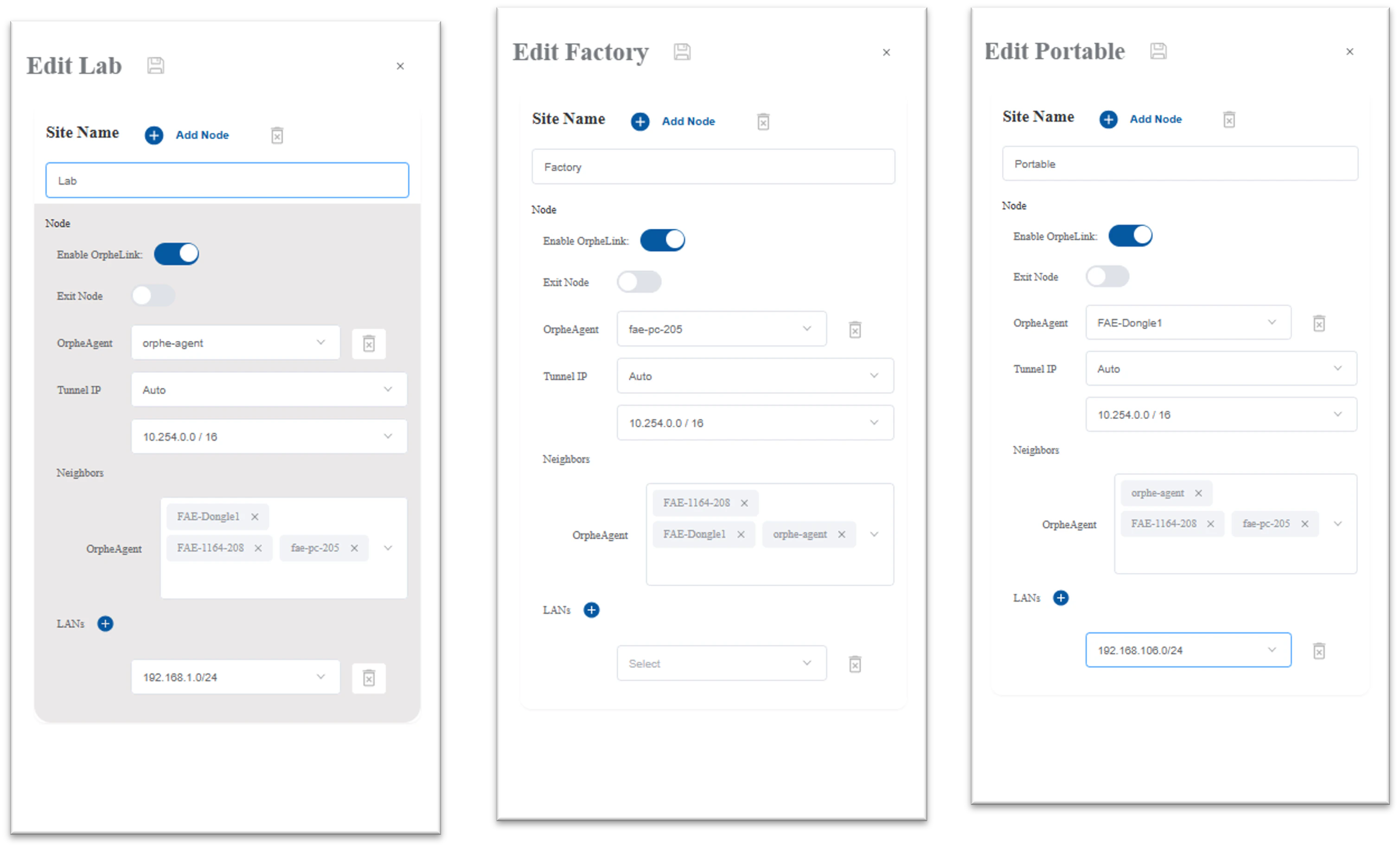
- Lab: Add node
Final Configuration Summary
After completing the setup, the resulting site topology is displayed as follows:
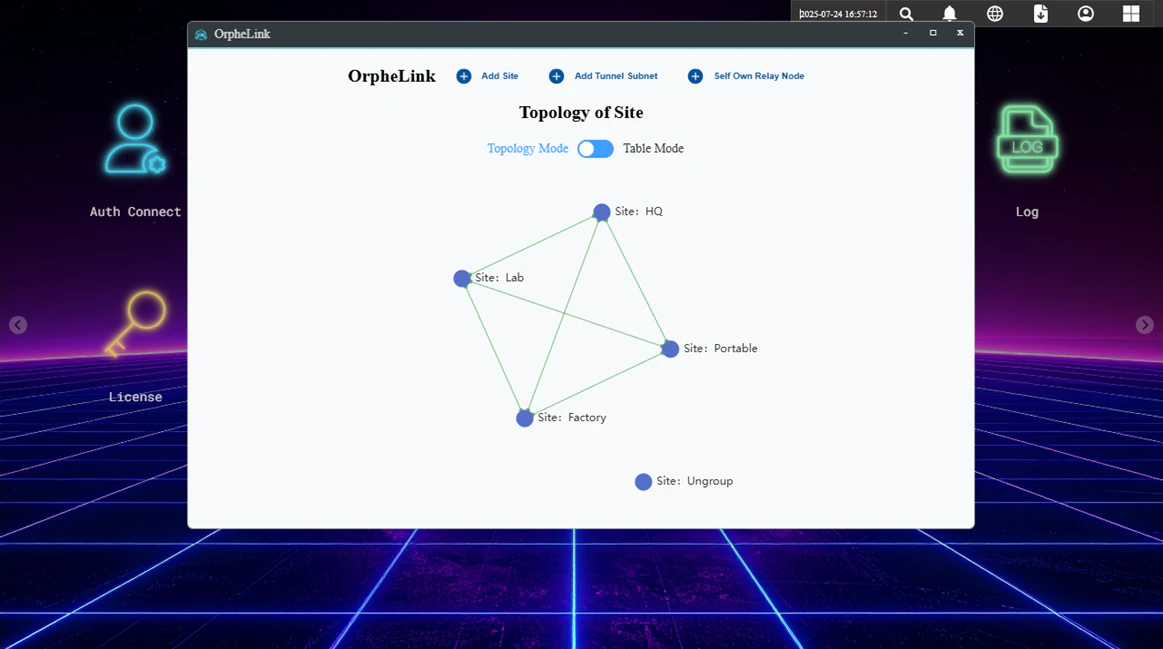
The Tunnel IP and LAN settings for each configured site are listed below:
| Site | Node | Tunnel IP | LANs |
|---|---|---|---|
| HQ | FAE-1164-208 | 10.254.0.4 | 192.168.208.0/24 |
| Lab | KSH-4010 | 10.254.0.2 | 192.168.1.0/24 |
| Factory | FAE-PC-205 | 10.254.0.3 | N/A |
| Portable | FAE-Dongle1 | 10.254.0.1 | 192.168.106.0/24 |
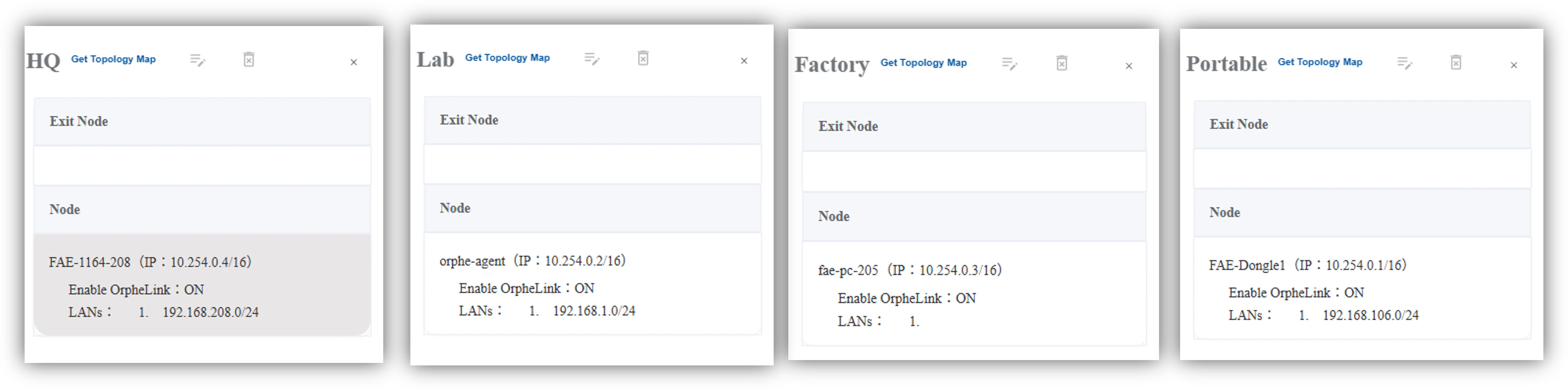
Once this setup is completed, the devices are fully connected and ready to communicate.